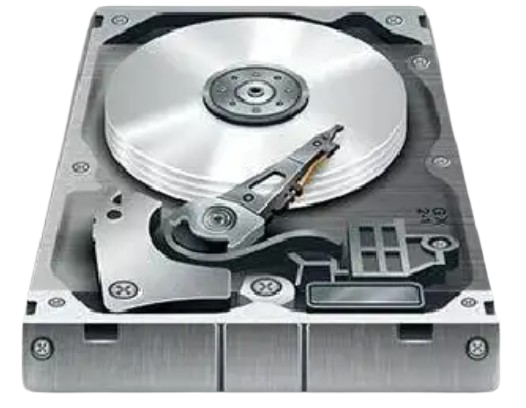
A slow hard drive and a failing SSD can sometimes show similar symptoms. Your computer may freeze while opening files, take longer than usual to start, or display unexpected storage errors. However, the causes behind these problems can be very different.
Traditional hard disk drives (HDDs) use spinning platters and mechanical read/write heads, while solid-state drives (SSDs) use flash memory and electronic controllers. NVMe SSDs use a different storage protocol, and external USB drives introduce additional connection hardware that can affect diagnostic results.
These differences matter when choosing how to test a storage device.
Victoria HDD/SSD is a Windows-based diagnostic utility that can examine compatible HDDs, SATA SSDs, NVMe SSDs, and certain external USB storage devices. It provides access to supported S.M.A.R.T. information, surface testing, response-time measurements, and other diagnostic features.
However, a test that is useful for a mechanical hard drive may be less informative for an SSD. Likewise, a missing S.M.A.R.T. report on a USB drive does not necessarily mean the device is damaged.
This guide compares Victoria HDD vs SSD testing, explains how the software works with different storage technologies, and shows how to choose appropriate diagnostic methods without unnecessarily risking your data.
Is Victoria HDD Testing Different From SSD Testing?
Yes. Victoria HDD and SSD testing should be approached differently because mechanical hard drives and solid-state drives store and manage data in different ways.
For mechanical HDDs, S.M.A.R.T. attributes, read errors, response-time measurements, and surface scans can help identify possible media or mechanical problems.
For SSDs, health monitoring usually focuses more on flash-memory wear, media errors, spare capacity, temperature, and controller-reported information.
NVMe SSDs use their own health reporting structure, while external USB drives may have limited diagnostic access because of their USB adapters or enclosures.
The safest starting point for any compatible storage device is to identify the correct drive, review available health information, and perform additional non-destructive tests only when necessary.
What Is Victoria HDD/SSD?
Victoria HDD/SSD is a Windows storage diagnostic program that communicates with compatible storage devices to retrieve health information and examine reading behavior.
Unlike utilities that mainly check files and file-system structures, Victoria focuses on the storage device itself.
Depending on the hardware and software version, Victoria may provide:
- S.M.A.R.T. health information
- Drive identification details
- Surface response-time scanning
- Read-error detection
- Bad-sector investigation
- Temperature information
- SSD endurance indicators
- NVMe health data
- Selected external USB diagnostics
- Advanced sector-handling operations
Victoria is primarily a diagnostic utility. Although it includes functions related to Remap, Erase, and writing, it cannot physically repair damaged storage hardware or guarantee the recovery of lost files.
HDD vs SSD vs NVMe vs USB: Understanding the Differences
Before testing a storage device, it is helpful to understand how its technology affects diagnostic results.
Mechanical Hard Disk Drives (HDDs)
Mechanical hard drives store information magnetically on rotating platters.
A moving read/write head accesses the information.
Because these drives contain mechanical components, they can develop problems such as:
- Deteriorating magnetic recording surfaces
- Weak or unreadable sectors
- Read retries
- Mechanical wear
- Read/write head problems
- Spindle motor issues
- Interface communication errors
Surface scanning and traditional HDD S.M.A.R.T. attributes can provide useful clues about some of these conditions.
SATA Solid-State Drives (SSDs)
SATA SSDs use NAND flash memory instead of spinning platters.
A controller manages how information is stored, accessed, and moved internally.
Common SSD-related concerns include:
- Flash-memory wear
- Media errors
- Controller problems
- Firmware issues
- Temperature problems
- Reduced spare capacity
- Unexpected disconnections
SSD health evaluation often depends on manufacturer-specific S.M.A.R.T. attributes and endurance information.
NVMe Solid-State Drives
NVMe SSDs also use flash memory, but they communicate through the NVMe protocol, commonly over PCIe.
NVMe devices provide health information through a different reporting structure from traditional SATA HDDs.
Important indicators may include:
- Critical Warning
- Composite Temperature
- Available Spare
- Percentage Used
- Media and Data Integrity Errors
- Data Units Written
- Unsafe Shutdowns
Not every diagnostic feature available for SATA storage applies to NVMe drives.
External USB Storage Devices
External USB drives may contain mechanical HDDs, SATA SSDs, or NVMe SSDs.
A USB enclosure or adapter connects the underlying storage device to the computer.
This extra hardware can affect the commands available to diagnostic software.
Some USB bridges pass S.M.A.R.T. information and other diagnostic commands correctly, while others block them.
As a result, USB drive testing depends on both the storage device and its enclosure.
Victoria HDD vs SSD vs NVMe vs USB Testing Comparison
The following table summarizes the main differences.
| Feature | Mechanical HDD | SATA SSD | NVMe SSD | External USB drive |
|---|---|---|---|---|
| Main technology | Magnetic platters | NAND flash | NAND flash with NVMe protocol | HDD or SSD through USB |
| Main health focus | Sector errors, mechanical symptoms | Wear, media errors, controller health | NVMe health log, wear, critical warnings | Underlying drive health and connection |
| S.M.A.R.T. information | Traditional ATA attributes | ATA attributes, often vendor-specific | NVMe health information | Depends on USB bridge |
| Surface scanning | Useful when drive is stable | Sometimes useful | Depends on supported commands | Depends on device and enclosure |
| Response-time testing | Can reveal slow areas | Influenced by SSD controller behavior | Influenced by NVMe and system behavior | Influenced by USB connection |
| Main testing risk | Stress on failing mechanical hardware | Data loss from destructive tests | Data loss from destructive tests | Data loss and connection instability |
| Best initial action | Review S.M.A.R.T. and symptoms | Review SSD health indicators | Review NVMe health log | Check connection and available health data |
The best testing method depends on the type of drive, its symptoms, and the information you need.
How Does Victoria HDD Testing Work?
Victoria can communicate with supported mechanical hard drives to retrieve identification information, health attributes, and diagnostic results.
When a read-based surface scan runs, Victoria requests information from selected logical storage areas and measures how quickly those requests are completed.
The software may display response-time categories, slow blocks, and reading errors.
These measurements can help users investigate whether a hard drive is struggling to access certain areas.
Important HDD Health Indicators
Several traditional S.M.A.R.T. attributes are useful when examining mechanical hard drives.
Reallocated Sector Count: Reports information about physical sectors that have been replaced with spare areas.
Current Pending Sector Count: Reports sectors that the drive has difficulty reading and may need to reassess.
Offline Uncorrectable: Reports certain errors that the device could not correct during relevant operations.
UDMA CRC Error Count: Commonly records storage-interface communication errors.
Power-On Hours: Provides reported operating time.
Temperature: Helps identify whether the drive is operating within an appropriate thermal range.
These values should be interpreted together rather than individually.
What Does an HDD Surface Scan Reveal?
A Victoria surface scan can reveal:
- Normally responding blocks
- Slow-reading areas
- Unusually slow blocks
- Read errors
- Unreadable storage areas
- Widespread response delays
A slow response does not automatically mean that a physical sector is damaged.
However, repeated reading problems combined with increasing S.M.A.R.T. errors may indicate declining reliability.
When Should You Avoid an HDD Surface Scan?
Avoid unnecessary scanning if the hard drive:
- Makes repeated clicking or grinding noises
- Disconnects frequently
- Stops responding
- Contains important files that are becoming unreadable
- Shows signs of severe mechanical failure
A full read scan can place additional stress on damaged mechanical hardware.
When valuable data is at risk, protecting that information should take priority over completing another diagnostic test.
How Does Victoria SSD Testing Work?
SATA SSDs store information in flash-memory cells managed by an internal controller.
Unlike mechanical hard drives, SSDs do not use spinning platters or moving read/write heads.
They also use internal processes such as wear leveling, error correction, and logical-to-physical address mapping.
These features affect how diagnostic results should be interpreted.
What Can Victoria Check on a SATA SSD?
Depending on compatibility, Victoria may display:
- Drive model and capacity
- Power-on hours
- Temperature
- Total data written
- Remaining-life estimates
- Flash-memory wear indicators
- Media errors
- Spare block information
- Other manufacturer-specific health attributes
Not every SATA SSD reports the same information.
Why Is SSD Wear Important?
NAND flash memory has limited write endurance.
Manufacturers estimate how much data a drive is designed to write over its expected service life.
Some SSDs report endurance information through health attributes.
For example, a drive may report a remaining-life estimate or a percentage of endurance consumed.
These measurements can help users understand how much of the expected write endurance has been used.
However, wear estimates do not guarantee how long an SSD will continue functioning.
An SSD can fail because of controller, firmware, or electrical problems even when its endurance indicators appear normal.
Is a Surface Scan Useful for an SSD?
A read-based scan can help investigate whether selected logical storage areas are accessible.
However, the scan does not directly reveal the physical condition of individual NAND flash-memory cells.
SSD controllers can move data internally through wear leveling and other management processes.
Therefore, a logical block read by Victoria does not necessarily represent one fixed physical flash location.
For many SSD problems, health logs and manufacturer-specific diagnostics provide more useful information than repeated full surface scans.
Should You Use Remap or Erase on an SSD?
Beginners should avoid unnecessary sector-modifying operations on SSDs.
SSDs manage flash allocation and defective memory locations through their internal controllers.
Write and Erase operations can overwrite data, and unnecessary write-heavy testing consumes flash endurance.
When an SSD reports serious media errors or repeated failures, replacement may be safer than attempting advanced HDD-style repair operations.
How Does Victoria NVMe Testing Work?
NVMe SSDs use a storage protocol designed for high-performance nonvolatile memory devices.
They typically connect through PCIe, although NVMe drives may also be used in certain external USB enclosures.
Victoria 5.x includes diagnostic functionality for compatible NVMe devices.
However, the available features depend on the software version, drive firmware, controller, and Windows storage configuration.
Important NVMe Health Indicators
NVMe devices use health information that differs from the traditional ATA S.M.A.R.T. attribute table.
| NVMe health indicator | What it means |
|---|---|
| Critical Warning | Reports certain important device conditions |
| Composite Temperature | Device-reported temperature |
| Available Spare | Estimated available spare capacity |
| Available Spare Threshold | Device-defined warning threshold |
| Percentage Used | Estimated endurance consumption |
| Data Units Read | Reported amount of data read |
| Data Units Written | Reported amount of data written |
| Media and Data Integrity Errors | Recorded relevant media or integrity errors |
| Unsafe Shutdowns | Certain shutdowns without the expected sequence |
These indicators can help users assess NVMe health and identify possible reliability concerns.
What Does NVMe Percentage Used Mean?
Percentage Used is an estimate of the portion of the SSD’s expected endurance that has been consumed.
For example, a value of 20% generally indicates that the device estimates it has used approximately one-fifth of its rated endurance.
However, this is not a direct measurement of the probability of failure.
It also does not guarantee that the device will continue operating until a particular percentage is reached.
What Does Available Spare Mean?
Available Spare describes the device’s reported remaining spare capacity according to the NVMe reporting method.
A low value or a relevant critical warning may indicate that the device needs attention.
Users should compare the result with the manufacturer’s specifications and other health indicators.
Can Victoria Surface Scan Every NVMe SSD?
Not necessarily.
NVMe testing compatibility depends on the Victoria version, operating system, storage controller, firmware, and available commands.
A drive may display health information even when certain low-level tests are unavailable.
If Victoria cannot perform a particular diagnostic operation, it does not automatically mean the NVMe drive is damaged.
Manufacturer-provided software may offer additional testing options.
How Does Victoria External USB Drive Testing Work?
External USB storage adds another component to the diagnostic process: the USB bridge.
This component translates communication between the computer and the storage hardware.
For example, a SATA SSD inside a USB enclosure may support S.M.A.R.T. monitoring, but the enclosure may block the commands required to retrieve the information.
Which External USB Drives Can Victoria Test?
Victoria may provide diagnostic access to compatible:
- External mechanical HDDs
- External SATA SSDs
- External NVMe SSDs
- Certain USB storage devices
However, compatibility is not guaranteed.
Some devices expose identification and basic reading functions but do not provide complete low-level health information.
Why Does Victoria Not Show S.M.A.R.T. on My USB Drive?
Possible reasons include:
- The USB enclosure does not support the required commands.
- The USB bridge restricts diagnostic access.
- The storage device uses an unsupported interface.
- The software version has compatibility limitations.
- The controller does not provide the requested health information.
Missing S.M.A.R.T. data does not automatically prove that the underlying drive is unhealthy.
Does USB Affect Surface Scan Results?
Yes.
USB performance can be influenced by:
- Connection speed
- Cable quality
- USB controller behavior
- Enclosure firmware
- Other devices sharing the connection
- Power limitations
- Connection instability
For example, slow scan responses through USB may reflect interface limitations rather than damaged storage media.
Consider the entire connection path when interpreting results.
How to Choose the Right Victoria Test for Each Drive Type
Different storage technologies benefit from different diagnostic priorities.
For Mechanical HDDs
Start with S.M.A.R.T. attributes and review mechanical symptoms.
If the drive is stable enough, a read-based surface scan may help investigate reading difficulties.
For SATA SSDs
Review wear indicators, media errors, temperature, and other manufacturer-specific health information.
Use additional read-based diagnostics only when necessary.
For NVMe SSDs
Check NVMe health information, especially critical warnings, available spare, percentage used, and media errors.
Use manufacturer-specific tools when Victoria does not provide the required functions.
For External USB Drives
Start by checking the physical connection and whether the USB enclosure supports diagnostic commands.
Review available health data before attempting further testing.
Recommended Initial Diagnostic Method
| Storage type | First check | Next step if needed |
|---|---|---|
| HDD | S.M.A.R.T. and mechanical symptoms | Read-based surface scan if safe |
| SATA SSD | Health and wear attributes | Supported read diagnostics |
| NVMe SSD | NVMe health log | Manufacturer-specific diagnostics |
| External USB HDD | Connection and S.M.A.R.T. availability | Supported read-based scan |
| External USB SSD | Connection and available health information | SSD-specific diagnostics |
How to Test HDDs and SSDs Safely With Victoria
Although testing methods differ, several basic precautions apply to every storage device.
Step 1: Back Up Important Files
Protect important data before advanced testing.
A backup should be stored separately from the device being examined.
Step 2: Open Victoria HDD/SSD
Launch a trustworthy copy of the software on Windows.
Some diagnostic functions may require administrator privileges.
Step 3: Select the Correct Drive
Confirm the device’s model, capacity, and available identifying information.
Do not rely only on its Windows drive letter.
Step 4: Review Available Health Information
Check traditional S.M.A.R.T. attributes or NVMe health information, depending on the storage device.
Step 5: Decide Whether Additional Testing Is Necessary
A stable drive with no concerning symptoms may not require a full surface scan.
If the drive shows serious failure symptoms, protect data before performing further diagnostics.
Step 6: Choose a Non-Destructive Test
If additional testing is appropriate, select a supported read-based operation.
In Victoria versions that separate test mode from sector-handling action, confirm that a non-modifying option such as Ignore is selected.
Avoid Write, Erase, Remap, or other data-modifying functions during routine health checks.
Step 7: Monitor the Results
Look for repeated reading errors, abnormal response times, and other warnings.
Stop unnecessary testing when a drive becomes severely unstable.
Step 8: Evaluate the Entire Diagnostic Picture
Compare the results with device health information, connection status, and actual symptoms.
Do not diagnose a drive using one isolated result.
Victoria Read vs Verify vs Write Testing
Victoria may provide several testing modes depending on the software version and selected device.
Read Mode
Read Mode requests existing information from selected storage areas.
It can help measure response times and identify read errors.
It does not intentionally overwrite user files when configured as a read-only diagnostic operation.
Verify Mode
Verify Mode uses supported storage verification commands.
The operation may check whether selected areas can be verified without transferring the same data as a normal read test.
Its availability depends on the storage interface and hardware.
Write Mode
Write Mode writes information to storage areas.
It may overwrite existing files and permanently destroy data.
It is not appropriate for routine testing of a drive containing important information.
Remap and Erase
Remap-related actions attempt supported handling of unreliable sectors.
Erase operations overwrite selected storage areas.
Both require additional precautions and should not be treated as harmless diagnostic settings.
| Test mode | Main purpose | Data-safety consideration |
|---|---|---|
| Read | Evaluate reading behavior | Lower risk, but can stress failing HDDs |
| Verify | Check supported verification responses | Usually non-destructive, but support varies |
| Write | Evaluate writing behavior | May overwrite files |
| Remap-related action | Address selected problematic sectors | May modify stored data |
| Erase | Overwrite storage areas | Can permanently destroy data |
How to Interpret Victoria HDD and SSD Scan Results
Victoria may display results as colored blocks, response-time categories, graphs, or error counters.
The exact presentation depends on the software version.
Fast-Responding Blocks
These blocks complete the requested operation within a relatively short time.
This is generally encouraging but does not guarantee complete device health.
Slow-Responding Blocks
Slow blocks take longer than expected to respond.
Possible causes include read retries, system activity, controller behavior, interface limitations, or storage instability.
Unreadable Blocks
Unreadable blocks are areas where the requested operation cannot be completed successfully.
Repeated unreadable blocks can indicate serious storage or communication problems.
Surface Scan Comparison
| Scan finding | HDD interpretation | SSD interpretation |
|---|---|---|
| Isolated slow response | Could involve a retry or temporary delay | Could involve controller activity or temporary delay |
| Repeated slow blocks | May indicate unstable media or other issues | May involve controller, workload, or media problems |
| Read errors | Possible media or interface issue | Possible media, controller, or interface issue |
| Widespread errors | Serious reliability concern | Serious reliability concern |
| Normal scan | Encouraging but not conclusive | Encouraging but not conclusive |
Scan results should always be considered alongside drive-reported health information.
Why HDD and SSD Surface Scans Can Look Different
HDDs and SSDs have different performance characteristics.
A mechanical hard drive must position its read/write head and wait for the rotating platter to reach the requested location.
An SSD accesses flash memory electronically without mechanical movement.
This means normal response-time patterns can differ substantially.
Mechanical HDD Behavior
HDD performance can be influenced by:
- Rotational speed
- Head movement
- Data location
- Media condition
- Read retries
- Background operations
SSD Behavior
SSD performance can be influenced by:
- Controller activity
- Flash-memory characteristics
- Cache behavior
- Background maintenance
- Error correction
- Thermal conditions
- System workload
For these reasons, applying one universal response-time threshold to every storage device can be misleading.
Can Victoria Detect a Failing HDD or SSD?
Victoria can reveal certain warning signs of storage failure.
However, it cannot predict every failure or guarantee how long a drive will continue working.
HDD Failure Warning Signs
Possible warning signs include:
- Increasing pending sectors
- Increasing reallocated sectors
- Repeated uncorrectable errors
- Frequent read failures
- File corruption
- Unusual mechanical noises
- Unexpected disconnections
SSD Failure Warning Signs
Possible warning signs include:
- Repeated media errors
- Device-reported critical warnings
- Reduced available spare capacity
- Unexpected disconnections
- Inaccessible files
- Serious controller or firmware problems
- Repeated device-level failures
NVMe Failure Warning Signs
Relevant indicators may include:
- Critical Warning flags
- Media and Data Integrity Errors
- Available Spare below the reported threshold
- Persistent storage errors
- Frequent device resets or disconnections
Not every warning means immediate failure, but combinations of serious symptoms should be treated cautiously.
When Should You Replace a Drive Instead of Testing It?
Replacing a storage device may be safer than repeatedly testing it when reliability continues declining.
Consider replacement if:
- Sector-related errors keep increasing.
- Important files become corrupted.
- A mechanical HDD makes unusual noises.
- The drive repeatedly disconnects.
- Media errors continue appearing.
- Serious health warnings persist.
- The device becomes increasingly difficult to access.
- You can no longer trust it with important information.
If irreplaceable files are already inaccessible, professional data recovery assistance may be more appropriate than continued testing.
Common Victoria HDD vs SSD Testing Mistakes
Using the Same Health Indicators for Every Drive
Traditional HDD attributes and NVMe health logs use different reporting methods.
Always interpret values in the context of the device.
Treating SSD Slow Blocks Like HDD Bad Sectors
SSD controllers manage internal flash-memory locations.
A slow logical block does not directly reveal the condition of a particular physical flash cell.
Running Unnecessary Write Tests
Write-heavy testing can overwrite important files and consume SSD endurance.
Avoid destructive tests unless you have a clear purpose and a verified backup.
Ignoring USB Bridge Limitations
Some USB enclosures restrict access to low-level diagnostic commands.
Missing health information does not always mean the underlying drive is defective.
Assuming Every Slow Block Indicates Damage
Temporary system activity, interface conditions, and controller behavior can affect response times.
Running Full Scans on a Failing HDD
Intensive reading may place additional stress on damaged mechanical components.
Treating a Normal Health Report as a Guarantee
Even drives with normal-looking health values can fail unexpectedly.
Maintain regular backups.
Frequently Asked Questions About Victoria HDD vs SSD Testing
Is Victoria HDD testing different from SSD testing?
Yes. HDD testing often focuses on sector-related errors and mechanical symptoms, while SSD testing emphasizes wear indicators, media errors, controller health, and device-specific information.
Can Victoria test both HDDs and SSDs?
Yes. Victoria provides diagnostic features for compatible mechanical hard drives and SATA SSDs. Available functions depend on the device and software version.
Is Victoria safe for SSD testing?
Victoria can be used for supported SSD health checks. However, write, erase, and other data-modifying operations can cause data loss. Unnecessary write-heavy testing should be avoided.
Should I run a surface scan on an SSD?
Not necessarily. SSD health logs may provide more useful information for routine monitoring. A read-based scan may help investigate specific errors when appropriate.
Can Victoria test NVMe SSDs?
Victoria 5.x includes diagnostic support for certain compatible NVMe devices. The available information and testing functions depend on hardware and software compatibility.
Why does Victoria not detect my NVMe SSD?
Possible causes include software version limitations, storage-controller restrictions, permissions, driver behavior, or other compatibility issues.
Does Victoria support external USB hard drives?
Victoria may recognize and diagnose compatible USB-connected storage devices. However, some USB enclosures block S.M.A.R.T. information or low-level diagnostic commands.
Why is S.M.A.R.T. missing on my USB SSD?
The USB bridge may not pass the commands needed to retrieve the underlying SSD’s health information.
What is the best Victoria test for a mechanical HDD?
Review S.M.A.R.T. health information first. If the drive is stable and further testing is appropriate, a read-based surface scan may provide useful information.
What is the best Victoria test for a SATA SSD?
Review supported wear indicators, media errors, temperature, and other manufacturer-specific health information before considering an additional read-based scan.
What is the best way to check NVMe health?
Review supported NVMe health information, including critical warnings, available spare, percentage used, and media errors. Manufacturer-specific tools may provide additional detail.
Can Victoria detect bad sectors on SSDs?
Victoria may identify unreadable logical storage blocks on compatible SSDs. However, these results do not directly reveal the condition of individual physical NAND flash cells.
Can Victoria repair a failing SSD?
Victoria cannot physically restore damaged flash memory or repair failed controllers. Replacement is often safer when an SSD becomes unreliable.
Is Read Mode safe for HDDs and SSDs?
A correctly configured read-only test does not intentionally overwrite stored information. However, intensive reading can place additional stress on a mechanically failing HDD.
What does Verify mean in Victoria?
Verify uses supported storage commands to check selected areas. Its availability and behavior depend on the drive and interface.
Is NVMe faster than SATA SSD?
NVMe SSDs generally support higher potential data transfer rates than traditional SATA SSDs because they use different interfaces and protocols. Actual performance depends on the device and system configuration.
Can USB speed affect Victoria test results?
Yes. USB connection speed, enclosure behavior, controller limitations, and other system activity can affect response-time measurements.
Should I replace an HDD with bad sectors?
Replacement is worth considering when bad-sector counts increase, read errors become frequent, or the drive shows other signs of unreliability.
Can a healthy-looking SSD suddenly fail?
Yes. SSDs can experience unexpected controller, firmware, electrical, or other failures even when wear indicators look normal.
Does a successful Victoria scan guarantee a healthy drive?
No. A successful scan provides useful information about the tested operations, but it cannot guarantee future reliability.
Conclusion
Victoria HDD/SSD is a useful Windows diagnostic utility for examining supported mechanical hard drives, SATA SSDs, NVMe SSDs, and external USB storage devices.
However, HDD and SSD testing should not be treated as identical processes.
Mechanical hard drives benefit from examining traditional S.M.A.R.T. attributes, reading behavior, and mechanical symptoms. SATA SSDs require greater attention to flash-memory wear, controller-reported health information, and media errors.
NVMe SSDs use a different health reporting structure, while external USB drives introduce additional compatibility limitations through their enclosures and adapters.
Understanding these differences helps you choose more appropriate diagnostic tests and avoid misleading results.
The safest approach is to protect important files, verify the selected drive, review available health information, and perform non-destructive diagnostics only when necessary.
If a storage device continues developing serious errors, replacement may be safer than attempting repeated repair operations.
The purpose of Victoria testing is not simply to find errors. It is to understand storage health, recognize reliability risks, and make informed decisions that protect your data.