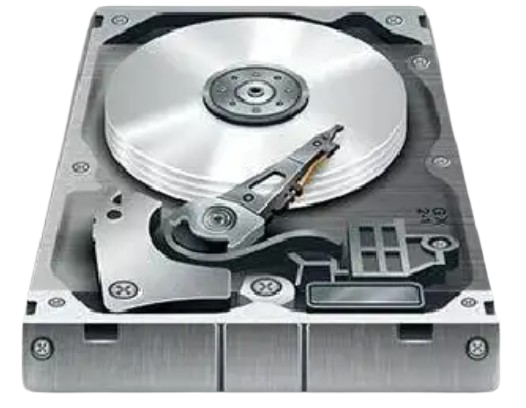
A hard drive that suddenly becomes slow, freezes during file transfers, or displays read errors can make you worry about losing important files. When these problems appear, you may start looking for a way to repair the drive without replacing it.
One tool often used to investigate these issues is Victoria HDD/SSD, a Windows-based storage diagnostic utility that can detect problematic sectors, examine drive health, and perform certain advanced sector-related operations.
Victoria includes features such as S.M.A.R.T. monitoring, surface scanning, Remap, and Erase. These functions can help users investigate storage errors and, under certain conditions, influence how a drive handles unreliable sectors.
However, there is an important difference between managing a problematic sector and physically repairing damaged hardware.
Victoria cannot rebuild damaged platters, repair broken read/write heads, or guarantee that a failing hard drive will become reliable again.
This guide explains what Victoria HDD can and cannot fix, how sector remapping works, when an Erase operation may be considered, and why replacing a damaged drive is sometimes safer than attempting repair.
Can Victoria HDD Repair a Hard Drive?
Victoria HDD can diagnose storage problems and may help manage certain unreliable sectors, but it cannot physically repair damaged hard drive hardware.
Its Remap-related functions may influence how a compatible drive handles defective sectors. When supported, the drive’s firmware can redirect access from an unreliable physical sector to a reserved spare sector.
Victoria may also help investigate logical or temporary storage problems through diagnostic testing.
However, it cannot repair damaged platters, broken mechanical components, failing electronics, or worn-out flash memory.
A drive that continues developing bad sectors or other serious errors should be considered for replacement.
Before attempting any repair-related operation, back up important files and understand the risks involved.
What Is Victoria HDD Repair?
Victoria HDD repair refers to using the software’s diagnostic and advanced sector-handling features to investigate or attempt to address certain storage problems.
Victoria is primarily a storage testing utility, not a physical hardware repair program.
It communicates with compatible storage devices to retrieve information about their condition and examine how they respond during diagnostic operations.
Depending on the version and hardware, Victoria can provide:
- S.M.A.R.T. health information
- Bad-sector detection
- Surface response-time scanning
- Read error identification
- Drive identification information
- Remap-related operations
- Erase and write-based functions
- Other supported diagnostic features
These tools can provide valuable information about a drive’s condition.
However, diagnostic results do not always reveal the exact cause of a problem, and repair-related operations do not guarantee a permanent solution.
Is Victoria HDD a Repair Tool or a Diagnostic Tool?
Victoria is best described as a diagnostic utility with additional sector-handling capabilities.
Its primary value comes from helping users understand storage health and identify possible problems.
Certain advanced functions may influence how unreliable storage areas are handled, but the outcome depends on the drive’s firmware, condition, and supported operations.
For this reason, Victoria should not be treated as a guaranteed solution for hardware failure.
What Problems Can Victoria HDD Help Fix or Manage?
Victoria may help with certain storage-related conditions, but the word “fix” requires careful interpretation.
Sometimes the software helps users identify a problem so they can correct its cause.
In other situations, advanced operations may help a compatible drive reassess or reallocate problematic sectors.
1. Identifying Slow or Unstable Sectors
Victoria can scan selected storage areas and measure their response times.
This allows users to identify blocks that take unusually long to read.
Slow responses may be associated with:
- Repeated read attempts
- Weak storage media
- Developing bad sectors
- Controller behavior
- Interface problems
- Temporary system activity
Identifying these areas helps users investigate whether a drive may be becoming unreliable.
However, detecting a slow sector does not mean Victoria has repaired it.
2. Detecting Bad Sectors
Victoria can report areas where reading operations fail or take unusually long.
These results can help identify possible bad sectors or unreadable logical blocks.
Some storage problems are temporary or involve conditions that may later be resolved by the drive.
Other problems involve permanent physical deterioration.
Victoria can identify symptoms associated with these conditions, but it cannot always determine their exact cause.
3. Managing Certain Problematic Sectors
Under appropriate conditions, sector-related operations may cause a compatible drive to reassess unreliable storage locations.
For example, a drive may eventually reallocate a defective physical sector to an available spare location.
This can allow future access to use a different physical area.
However, the damaged original sector is not restored, and any unreadable data may already be lost.
4. Investigating Connection Problems
Victoria can display certain interface-related S.M.A.R.T. attributes, including UDMA CRC errors on supported drives.
These errors may indicate communication problems rather than damage to the recording surface.
Possible causes include:
- Damaged SATA cables
- Loose connectors
- Unstable adapters
- Faulty storage interfaces
- Power-related problems
Victoria does not physically repair these components.
However, its diagnostic information may help users identify a possible connection issue that can be corrected separately.
5. Identifying Drive Health Warnings
Victoria can display available S.M.A.R.T. information, such as pending sectors, reallocated sectors, and uncorrectable errors.
These attributes can help users understand whether the drive has developed reliability problems.
The software does not necessarily repair the problems behind these warnings.
Instead, it provides information that can support decisions about backups, troubleshooting, and drive replacement.
What Can Victoria HDD Not Fix?
Victoria has important limitations.
Software cannot physically restore damaged internal hardware.
Physical Damage to Drive Platters
Mechanical hard drives store data magnetically on rotating platters.
If a platter is physically scratched or its recording surface is seriously damaged, Victoria cannot rebuild that surface.
Sector remapping may allow access to use a spare physical location, but the original damage remains.
Broken Read/Write Heads
Read/write heads access information stored on a mechanical hard drive’s platters.
If a head becomes damaged or fails mechanically, Victoria cannot repair it.
Continuing to scan a drive with head problems may cause additional damage.
Motor and Mechanical Failures
Mechanical hard drives contain motors and other moving components.
Victoria cannot repair a failed spindle motor, damaged actuator, or broken internal mechanism.
These problems require hardware-level intervention or replacement.
Electrical and Controller Failures
A storage device may stop functioning because of damaged electronics, controller faults, or power-related problems.
Victoria may help identify some symptoms, but it cannot physically repair defective electronic components.
Severely Damaged Storage Media
When storage media has deteriorated significantly, the drive may report repeated errors across multiple areas.
Victoria cannot reverse widespread physical deterioration.
Even if some sectors can be reallocated, additional failures may continue developing.
Permanently Lost Data
Victoria is not a dedicated file recovery program.
It cannot guarantee recovery of deleted, overwritten, or physically unreadable information.
If valuable files are already inaccessible, professional recovery assistance may be more appropriate than attempting additional repair operations.
Victoria HDD Repair Capabilities vs. Limitations
| Problem | What Victoria can do | What it cannot guarantee |
|---|---|---|
| Slow sectors | Detect unusual response times | Permanently eliminate the underlying cause |
| Bad sectors | Identify read errors and support certain sector operations | Physically restore damaged media |
| Pending sectors | Display warnings and support diagnostic investigation | Safely recover unreadable information |
| Reallocated sectors | Display relevant health information | Restore the original damaged sectors |
| CRC errors | Help identify possible communication problems | Physically repair faulty cables or connectors |
| Damaged platters | Reveal some related symptoms | Repair platter damage |
| Broken read/write heads | Help identify suspicious drive behavior | Repair mechanical components |
| SSD media errors | Display compatible health information | Restore worn-out NAND flash memory |
| Data loss | Provide limited diagnostic information | Recover deleted or overwritten files |
Understanding these limits helps prevent unnecessary repair attempts and reduces the risk of further data loss.
What Are Bad Sectors and Why Do They Matter?
A bad sector is a storage area that cannot reliably complete normal read or write operations.
On a traditional HDD, physical sectors exist on magnetic recording surfaces.
When a sector becomes unreliable, the drive may repeatedly attempt to read it.
This can cause slow responses, errors, or inaccessible data.
Bad sectors matter because they may affect files stored in those locations and may indicate broader storage deterioration.
Physical Bad Sectors
Physical bad sectors involve actual deterioration or damage to the storage media.
Possible causes include:
- Surface damage
- Magnetic recording deterioration
- Mechanical problems
- Other hardware failures
Software cannot physically repair damaged sectors.
Logical or Temporary Sector Problems
Some reading difficulties may be associated with interrupted operations, data corruption, or temporary device instability.
Depending on the cause and device behavior, a problematic area may later become readable.
However, a successful reading attempt does not always prove that the underlying problem has been permanently resolved.
Do All Bad Sectors Mean a Hard Drive Is Failing?
Not necessarily.
One isolated unreadable area does not automatically prove that the entire drive is about to fail.
However, confirmed bad sectors deserve attention, particularly if important information is affected.
Increasing bad-sector counts, repeated read errors, or file corruption are more concerning than one isolated slow response.
What Is Remapping in Victoria HDD?
Remapping is the process of redirecting access from an unreliable physical sector to a spare physical sector managed by the hard drive’s firmware.
Modern mechanical hard drives reserve spare storage areas that can be used when certain physical sectors become defective.
When the drive firmware determines that an original physical sector should no longer be used, it may assign a spare physical location.
The logical address presented to the computer can remain the same, while the underlying physical location changes.
Victoria’s Remap-related functions attempt to work with supported device behavior to address problematic sectors.
However, the actual reassignment is managed by the drive’s internal firmware.
How Does Victoria HDD Remapping Work?
Sector remapping involves several stages.
Step 1: The Drive Encounters an Unreliable Sector
During normal use or diagnostic testing, a storage area may fail to complete a reading operation.
The drive may retry the request or report an error.
Step 2: The Problematic Sector Is Identified
Victoria may detect the abnormal response during supported testing.
The drive itself may also maintain internal information about the problem.
Step 3: The Firmware Reassesses the Sector
Depending on the drive and operation, the firmware may determine whether the sector can continue being used.
A later write or other supported operation may affect this assessment.
Step 4: A Spare Physical Sector May Be Assigned
If the firmware determines that reallocation is necessary and supported, it may replace the original physical storage location with a reserved spare sector.
Step 5: Future Access Uses the Replacement Location
After successful reallocation, future operations directed to the same logical address use the replacement physical location.
The computer may continue accessing that logical sector without directly managing the physical replacement.
Does Remapping Restore the Original Bad Sector?
No.
The original damaged sector is not physically repaired.
The drive simply redirects access away from that unreliable physical location.
Does Remapping Restore Lost Data?
Not necessarily.
If the original sector cannot be read, its existing data may already be inaccessible.
Reallocation does not automatically recreate missing information.
Is a Remapped Drive Healthy Again?
Not automatically.
A drive may continue working after a successful reallocation, but the event indicates that a physical storage location was considered unreliable.
If additional sectors continue failing, the drive may be deteriorating.
What Is the Difference Between Pending and Reallocated Sectors?
These two S.M.A.R.T. indicators are especially relevant when understanding remapping.
Current Pending Sector Count
Pending sectors are areas that the drive has had difficulty reading and may need to reassess.
They have not necessarily been permanently replaced with spare sectors.
On many traditional HDDs, this information is associated with S.M.A.R.T. attribute 197.
Reallocated Sector Count
Reallocated sectors have already been replaced with spare physical locations.
On many traditional HDDs, this information is associated with attribute 05.
Pending vs. Reallocated Sectors
| Feature | Pending sector | Reallocated sector |
|---|---|---|
| Meaning | Problematic sector awaiting reassessment | Physical sector already replaced |
| Common S.M.A.R.T. ID | 197 / C5 | 05 |
| Physical replacement completed | Not necessarily | Yes |
| Existing data may be at risk | Yes | Yes, depending on circumstances |
| Count may change later | Yes | Generally reflects completed reallocations |
| Indicates possible reliability problems | Yes | Yes |
These identifiers are common on traditional HDDs, but reporting behavior may vary by manufacturer.
Can Pending Sectors Become Reallocated?
Yes.
Under certain conditions, the drive may replace a pending sector with a spare physical location.
However, not every pending sector is automatically reallocated.
Some may become readable again, while others may remain unresolved.
Is Victoria HDD Remap Safe?
Remap-related functions require caution because their behavior depends on the software version, drive firmware, and selected operation.
Some sector-handling methods may involve write attempts or changes to stored information.
As a result, remapping should not be assumed to be completely non-destructive.
Risks of Remapping
Possible risks include:
- Loss of information in affected sectors
- Unsuccessful sector reassignment
- Additional stress on failing hardware
- Continued errors after the operation
- Accidental selection of the wrong drive
- Further difficulty recovering valuable files
When Should You Avoid Remapping?
Avoid remap attempts when:
- Important files have not been backed up.
- The drive is making unusual mechanical noises.
- The device repeatedly disconnects.
- Valuable information is already unreadable.
- The drive shows widespread deterioration.
- You do not understand the selected operation.
For a severely failing drive, attempting repair before data recovery can make the situation worse.
How to Use Victoria HDD Safely Before Considering Repair
If your goal is to investigate a storage problem, begin with diagnostic information rather than advanced repair functions.
Step 1: Protect Important Files
Create a verified backup whenever the drive can still be accessed safely.
If the device has severe mechanical symptoms or inaccessible irreplaceable files, consider professional recovery assistance.
Step 2: Open Victoria HDD/SSD
Launch a trustworthy copy of the software on Windows.
Some diagnostic functions may require administrator privileges.
Step 3: Select the Correct Drive
Check the selected device’s:
- Model
- Manufacturer
- Capacity
- Interface
- Available serial information
Make sure you have selected the intended storage device.
Step 4: Review S.M.A.R.T. Health
Open the supported health information section.
Pay attention to reallocated sectors, pending sectors, uncorrectable errors, and other warnings.
Step 5: Decide Whether Further Testing Is Appropriate
If the drive is stable enough for testing, consider an appropriate non-destructive diagnostic operation.
For example, a Read test with a non-modifying action such as Ignore may be suitable on supported devices.
Step 6: Review Surface Scan Results
Look for repeated read errors, unreadable areas, and widespread slow responses.
A single slow block does not prove that a physical sector is damaged.
Step 7: Evaluate Repair Risks
Before considering Remap, Erase, or Write, determine whether the drive contains important data and whether replacement would be safer.
Step 8: Choose the Safest Next Action
Depending on the results, the appropriate action may be:
- Continue monitoring
- Check a faulty connection
- Back up important files
- Replace the drive
- Seek professional data recovery assistance
- Consider specialized maintenance only when the risks are understood
For most users, keeping important data safe is more valuable than attempting to preserve an unreliable drive.
What Does Erase Do in Victoria HDD?
Erase is a data-modifying function that overwrites selected storage areas.
Depending on the software version and operation, Erase may affect individual problematic areas or larger blocks.
When a problematic sector is written to, the drive firmware may reassess its condition.
In some circumstances, this may result in the sector becoming usable again or being reallocated.
However, this does not mean damaged physical media has been repaired.
Can Erase Fix a Pending Sector?
A write operation may cause a drive to reevaluate a pending sector.
The pending count may change as a result.
However, the operation can destroy the original information in the affected area.
It should not be used when existing data needs to be preserved.
Does Erase Repair Physical Bad Sectors?
No.
Erase does not rebuild damaged magnetic recording surfaces or repair failing mechanical components.
It may change how certain logical sectors are handled, but it cannot reverse underlying hardware deterioration.
Can Erase Delete Files?
Yes.
Erase can permanently overwrite data.
Even when a function targets a problematic sector, the affected range may be larger than expected.
Do not use Erase on a drive containing valuable data without a verified backup and a clear understanding of its operation.
Victoria Remap vs. Erase vs. Read
These functions serve different purposes.
| Feature | Read | Remap | Erase |
|---|---|---|---|
| Main purpose | Diagnose reading behavior | Attempt supported sector handling | Overwrite selected areas |
| Intentionally modifies existing data | No, in read-only mode | May | Yes |
| Measures response times | Yes | Depends on test configuration | Depends on test configuration |
| Physically repairs hardware | No | No | No |
| May affect sector allocation | Not directly | Yes, when supported | May trigger reassessment |
| Suitable for routine diagnosis | Usually, if the drive is stable | No | No |
| Requires special caution | Yes | Yes | Yes |
For a basic storage health check, S.M.A.R.T. monitoring and appropriate read-only diagnostics are generally preferable to data-modifying operations.
Can Victoria Repair Slow Sectors?
Victoria can identify areas that respond slowly during diagnostic testing.
However, a slow response does not automatically indicate a physically damaged sector.
Possible causes include:
- Read retries
- Media instability
- Background system activity
- Firmware operations
- Controller behavior
- Interface problems
- Mechanical deterioration
If slow responses result from connection problems, correcting the connection may improve performance.
If they result from physical hardware deterioration, software cannot repair the damaged components.
Should You Remap Every Slow Sector?
No.
Remapping should not be used automatically on every block that responds slowly.
A slow sector may still be readable and may not require physical reallocation.
Unnecessary data-modifying operations can introduce additional risks without resolving the underlying issue.
Can Victoria HDD Repair CRC Errors?
Victoria may display UDMA CRC errors in the S.M.A.R.T. information of supported drives.
CRC errors commonly indicate communication problems between the storage device and computer.
Victoria can help reveal these errors, but it does not physically repair the connection.
Common Causes of CRC Errors
Possible causes include:
- Damaged SATA cables
- Loose connectors
- Faulty adapters
- Unstable storage interfaces
- Power-related problems
What Should You Do?
If CRC errors are increasing:
- Back up important files.
- Inspect relevant connections when safe.
- Replace a suspect cable if appropriate.
- Check adapters and ports.
- Monitor whether new errors continue appearing.
A historical CRC count may remain unchanged after the original connection problem has been resolved.
Increasing new errors are more useful when investigating an ongoing issue.
Can Victoria Repair SSDs and NVMe Drives?
Victoria supports diagnostic functions for certain SSDs and NVMe storage devices.
However, SSDs work differently from mechanical hard drives.
An SSD uses NAND flash memory and a controller that manages data placement, wear leveling, error correction, and internal storage allocation.
SSD Repair Limitations
Victoria cannot physically restore worn-out flash-memory cells or repair failed controller electronics.
HDD-style sector remapping should not be assumed to work the same way on SSDs.
For SSD health problems, manufacturer-specific diagnostic tools and replacement may be more appropriate than repeated sector-modifying operations.
NVMe Repair Limitations
Supported Victoria versions may display NVMe health information such as:
- Critical warnings
- Percentage used
- Available spare capacity
- Temperature
- Media and data integrity errors
- Unsafe shutdowns
These indicators can help assess reliability.
However, a diagnostic report does not guarantee that a damaged NVMe SSD can be repaired.
When Should You Replace a Drive Instead of Repairing It?
Drive replacement is often safer when errors suggest continuing deterioration.
1. Bad Sectors Continue Increasing
Growing counts of pending, reallocated, or uncorrectable sectors can indicate declining media reliability.
2. Important Files Become Corrupted
Repeated file corruption or inaccessible information may indicate serious storage problems.
3. The Drive Makes Unusual Noises
Clicking, grinding, or other unusual mechanical sounds may indicate internal hardware failure.
Avoid unnecessary testing when valuable data is involved.
4. Read Errors Continue After Testing
Repeated or increasing read errors may mean the drive remains unreliable.
5. Remapping Does Not Stop New Problems
Even if some sectors are successfully reallocated, new defects may continue developing.
6. The Drive Disconnects Frequently
Repeated disconnections may involve faulty connections, electronics, or other hardware problems.
If connection troubleshooting does not resolve the issue, replacement may be necessary.
7. The Drive Stores Important Data
An unreliable drive should not be trusted as the only copy of valuable information.
Repair or Replace: A Simple Decision Table
| Drive condition | Recommended approach |
|---|---|
| No clear warnings or serious symptoms | Continue normal use with backups |
| Isolated slow blocks | Review diagnostic information |
| Increasing CRC errors | Investigate cables and connections |
| New pending sectors | Protect data and monitor or investigate |
| Increasing reallocated sectors | Consider replacement |
| Repeated uncorrectable errors | Prioritize data protection and replacement |
| Unusual mechanical noises | Stop unnecessary testing and consider professional recovery |
| Widespread unreadable blocks | Avoid repair experiments; assess recovery and replacement |
| Serious SSD media warnings | Back up files and consider replacement |
Common Victoria HDD Repair Mistakes to Avoid
Treating Remap as a Permanent Repair
Remapping does not restore physically damaged storage media.
A drive may continue deteriorating after reallocation.
Using Erase Without a Backup
Erase can permanently destroy information.
Never assume it is a harmless repair function.
Repeatedly Testing a Failing HDD
Repeated surface scans may place additional stress on mechanically damaged hardware.
Assuming Every Slow Sector Is Bad
Slow responses can result from many different conditions.
Selecting the Wrong Storage Device
Always verify the drive model and capacity before advanced operations.
Ignoring S.M.A.R.T. Warnings
Increasing sector-related errors may indicate that the drive is becoming unreliable.
Attempting Repair Before Data Recovery
If important files are already inaccessible, attempting to modify problem sectors can reduce recovery opportunities.
Believing Software Can Repair Broken Hardware
Diagnostic software cannot replace physical components or restore damaged recording surfaces.
Frequently Asked Questions About Victoria HDD Repair
Can Victoria HDD repair bad sectors?
Victoria can detect problematic areas and provide advanced sector-handling functions. However, it cannot physically repair damaged storage media. Drive firmware may reallocate unreliable sectors under appropriate conditions.
What can Victoria HDD fix?
Victoria may help manage certain problematic sectors through supported operations and identify issues such as interface errors. It cannot guarantee that storage problems will be permanently resolved.
What can Victoria HDD not fix?
Victoria cannot repair broken read/write heads, damaged platters, failed motors, defective electronics, worn-out flash memory, or other physical hardware failures.
What does Remap mean in Victoria HDD?
Remap refers to operations associated with reassignment of unreliable physical sectors. Under supported conditions, the drive firmware may redirect a logical address to a reserved spare physical sector.
Is Victoria Remap safe?
Remap-related operations may involve data modification and can place stored information at risk. They should only be considered when the user understands the operation and has a verified backup.
Does Remap recover lost files?
No. Sector reallocation does not automatically recover information that was already unreadable.
Does Remap permanently fix a hard drive?
No. Remapping avoids certain unreliable physical locations but does not reverse underlying hardware deterioration.
What does Erase do in Victoria HDD?
Erase overwrites selected storage areas. It may cause a drive to reassess problematic sectors, but it can also permanently destroy existing data.
Can Erase fix pending sectors?
A write operation may change the status of a pending sector, but there is no guarantee that the drive will become reliable. The operation can destroy existing information.
Is Read safer than Remap or Erase?
A non-destructive Read test is generally safer for a stable drive containing important data. However, intensive reading may still stress mechanically failing hardware.
Can Victoria repair physical bad sectors?
No. Physically damaged storage media cannot be restored by software.
Can Victoria fix logical bad sectors?
Some temporary or logical storage problems may resolve after appropriate device or file-system operations. However, Victoria cannot guarantee a successful repair or determine every problem’s underlying cause.
Can Victoria fix a clicking hard drive?
No. Repeated clicking can indicate mechanical problems that Victoria cannot physically repair. Avoid unnecessary testing if valuable data is involved.
Can Victoria repair an SSD?
Victoria can display supported diagnostic information and perform certain tests, but it cannot restore damaged flash-memory cells or failed electronic components.
Does Victoria support NVMe repair?
Supported Victoria versions provide some NVMe diagnostic functionality. However, available operations vary, and the software cannot guarantee physical repair of NVMe hardware.
Can Victoria fix CRC errors?
Victoria can identify reported CRC errors, but resolving them usually requires investigating the affected cable, connector, controller, or other communication component.
How many bad sectors are too many?
There is no universal safe number. Increasing counts, repeated read errors, or inaccessible important files are more concerning than a single isolated result.
Should I replace a drive after remapping?
Not always immediately, but a drive with reallocated sectors deserves attention. If errors continue increasing or the drive is unreliable, replacement is generally safer.
Can Victoria recover deleted files?
Victoria is primarily a storage diagnostic utility, not a dedicated deleted-file recovery program. It should not be relied upon for file recovery.
Does a successful Victoria scan mean the drive is healthy?
No. A successful scan does not guarantee that the drive will never fail. Other health indicators and actual device behavior must also be considered.
Should beginners use Victoria’s repair functions?
Beginners should generally focus on S.M.A.R.T. information and appropriate non-destructive diagnostics. Remap, Erase, and other advanced operations require additional knowledge and precautions.
Conclusion
Victoria HDD is a useful diagnostic utility for investigating storage problems, reading S.M.A.R.T. health information, identifying slow or unreadable sectors, and examining drive reliability.
Its Remap-related functions may help a compatible drive handle certain unreliable physical sectors through firmware-managed reallocation.
However, remapping is not the same as physically repairing a hard drive.
The original damaged sector remains defective, and the drive may continue developing additional problems.
Likewise, Erase operations can modify how some sectors are handled, but they can permanently destroy stored information and do not repair damaged hardware.
If your drive shows increasing bad sectors, repeated read failures, unusual mechanical noises, or serious health warnings, replacing it may be safer than attempting further repair.
The best approach is to protect your files, diagnose the problem carefully, understand the limitations of software-based repair, and avoid unnecessary operations that could make recovery more difficult.
Victoria HDD can help you understand and manage certain storage problems, but reliable backups and timely drive replacement remain the best protection against data loss.