A slow hard drive, unexpected file errors, or an SSD that disconnects without warning can make you question the health of your storage device. These problems may be related to damaged storage areas, unstable connections, or other hardware issues.
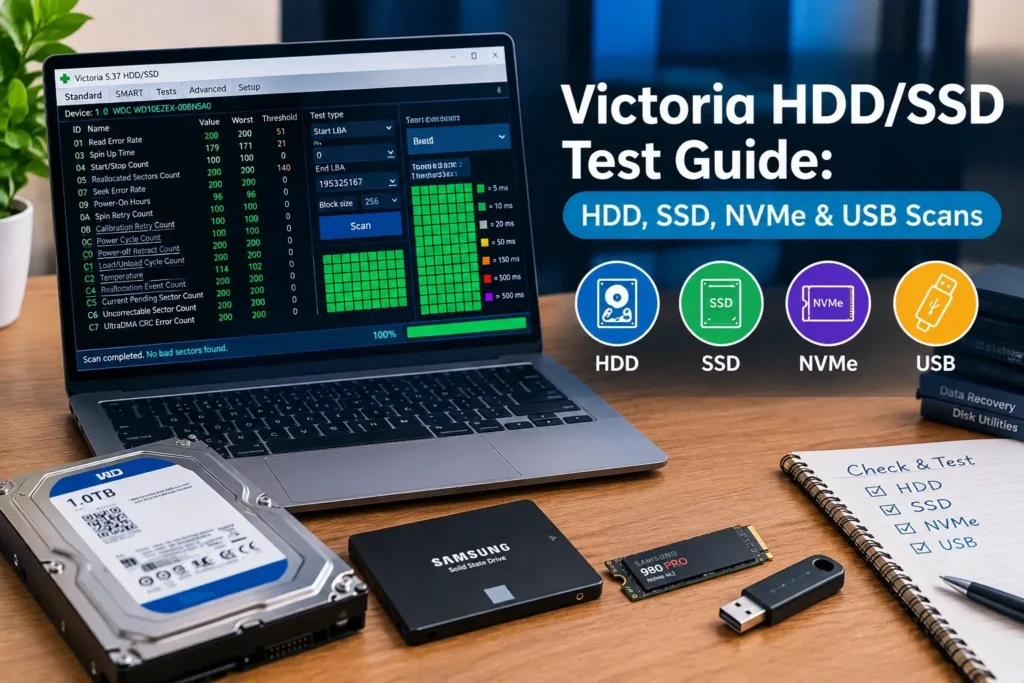
Victoria HDD/SSD is a Windows-based diagnostic utility that helps users test supported hard disk drives (HDDs), solid-state drives (SSDs), NVMe devices, and certain external USB storage devices.
It provides tools for reading S.M.A.R.T. health information, measuring storage response times, checking accessible blocks, and identifying possible read errors. These features can help you investigate storage problems before deciding whether additional troubleshooting or drive replacement is necessary.
However, not every storage device should be tested in the same way. Mechanical HDDs, SATA SSDs, NVMe SSDs, and USB drives use different technologies, and some Victoria functions may not be available on every device.
This guide explains how to run a Victoria HDD test safely, choose appropriate diagnostic modes, understand the results, and avoid operations that could damage or erase important files.
How Do You Test a Drive With Victoria HDD/SSD?
To test a storage device using Victoria HDD/SSD, open the program, select the correct drive, review its S.M.A.R.T. information, and choose an appropriate non-destructive diagnostic test if needed. Check the results for slow responses, unreadable blocks, and reported errors.
The basic testing process is:
- Back up important files.
- Open Victoria HDD/SSD on Windows.
- Select the HDD, SSD, NVMe drive, or USB device.
- Confirm its model and capacity.
- Review available S.M.A.R.T. or NVMe health information.
- Open the surface testing section.
- Choose a suitable Read or Verify test, where supported.
- Select a non-modifying action such as Ignore, if available.
- Start the test and monitor the results.
- Review errors, slow blocks, and other health indicators.
Important: Never select Write, Erase, Remap, or another data-modifying action for a routine read-only health check. Even read-only scans can stress a mechanically failing drive.
What Is a Victoria HDD Test?
A Victoria HDD test is a diagnostic operation that examines how a storage device responds to supported commands.
Depending on the selected mode, Victoria may request existing information from different storage areas, measure response times, and report areas that cannot be accessed normally.
Victoria also retrieves health information maintained internally by supported storage devices.
These results can help users investigate whether a problem involves the storage media, drive controller, interface, or another part of the computer.
What Problems Can Victoria Testing Detect?
Victoria may help identify:
- Slow-reading storage blocks
- Read errors
- Unreadable storage areas
- Reallocated or pending sectors
- Interface communication errors
- Unusual response-time patterns
- Certain SSD media errors
- NVMe health warnings
- Potential storage instability
However, diagnostic results do not always identify the exact cause of a problem.
For example, a slow response may be caused by an unstable hard drive, but it may also be affected by background system activity or communication issues.
What Storage Devices Can Victoria HDD/SSD Test?
Victoria provides diagnostic functionality for several types of storage devices.
The available information and testing options depend on hardware compatibility, the software version, and the connection.
| Storage device | Main testing focus | Important consideration |
|---|---|---|
| Mechanical HDD | S.M.A.R.T., slow sectors, read errors, surface response times | Intensive testing can stress failing mechanical hardware |
| SATA SSD | Health indicators, media errors, supported read tests | Avoid unnecessary write-heavy operations |
| NVMe SSD | NVMe health information, temperature, wear, and supported diagnostics | Not every version or controller supports the same tests |
| External USB HDD | Supported S.M.A.R.T. data and read diagnostics | USB bridge may block low-level commands |
| External USB SSD | Available health information and supported read operations | Controller and enclosure compatibility vary |
A storage device being detected by Victoria does not automatically mean that every diagnostic feature is available.
Before Running a Victoria HDD Test
Preparation is important because storage testing can involve risks, especially when the drive is already unstable.
Back Up Important Data
Always protect important files before advanced testing.
Store copies on a separate device or another reliable backup location.
Whenever possible, verify that the backup can be opened successfully.
If the drive has serious mechanical symptoms or important files are already unreadable, consider professional data recovery assistance before continuing.
Check for Signs of Serious Drive Failure
Before scanning, pay attention to whether the drive:
- Makes repeated clicking or grinding noises
- Disconnects frequently
- Disappears from Windows
- Becomes unresponsive
- Produces repeated read errors
- Contains important files that are becoming inaccessible
These symptoms may indicate that further testing is not the safest first step.
Use a Stable Connection
A damaged cable or unreliable adapter can affect diagnostic results.
For internal drives, check relevant connections if you are comfortable working with computer hardware.
For external devices, use a dependable USB connection.
Avoid disconnecting the storage device during an active diagnostic operation.
Close Unnecessary Programs
Other applications accessing the same storage device can affect response-time measurements.
Close unnecessary programs and avoid large file transfers during the test when possible.
If you are testing your Windows system drive, some operating system activity will continue in the background.
Understand the Available Testing Modes
Victoria may include different diagnostic modes and sector-handling actions.
Some are primarily used to observe drive behavior, while others can modify stored information.
Understanding these settings before pressing Start is essential.
How to Open Victoria HDD/SSD and Select a Drive
Before performing a test, confirm that the software is communicating with the intended storage device.
Step 1: Open Victoria HDD/SSD
Launch Victoria from its extracted folder or installed location, depending on the package.
Some features may require administrator privileges.
Use a trustworthy software source and verify the package before opening it.
Step 2: Locate the Device Selection Area
Victoria typically displays connected storage devices in a drive identification or selection section.
Depending on the version, this may appear under Standard, Drive Info, or a similar name.
Step 3: Choose the Intended Drive
Select the storage device you want to examine.
Review the available identifying information, including:
- Manufacturer
- Model number
- Capacity
- Firmware version
- Connection interface
- Serial number, when available
Step 4: Confirm Your Selection
Make sure the selected drive matches the storage device you intend to test.
For example, a computer may contain a 512 GB Windows SSD and a separate 2 TB hard drive.
Selecting the correct device prevents confusion and reduces the risk of accidentally modifying the wrong storage drive.
Do not rely only on a Windows drive letter.
How to Check S.M.A.R.T. Health Before Testing
A S.M.A.R.T. health check is usually the best starting point before a more intensive scan.
S.M.A.R.T. stands for Self-Monitoring, Analysis and Reporting Technology.
Supported drives maintain health-related information internally, and Victoria can retrieve available attributes.
How to Check S.M.A.R.T. Information
- Select the correct storage device.
- Open the S.M.A.R.T. section.
- Retrieve the available health information if necessary.
- Review the displayed attributes.
- Look for error counts and warnings.
- Record important values if you plan to compare them later.
Traditional HDDs and modern SSDs may report different types of health information.
Important HDD S.M.A.R.T. Indicators
| Attribute | Meaning | Warning sign |
|---|---|---|
| Reallocated Sector Count | Sectors replaced with spare areas | Increasing count |
| Current Pending Sector Count | Sectors awaiting reassessment | Increasing or recurring count |
| Offline Uncorrectable | Uncorrectable errors during relevant operations | Repeated or increasing errors |
| UDMA CRC Error Count | Interface communication errors | New errors continuing to appear |
| Power-On Hours | Reported operating time | Useful alongside other indicators |
| Temperature | Reported device temperature | Outside manufacturer limits |
A normal-looking S.M.A.R.T. report does not guarantee that a drive is healthy or that it will not fail unexpectedly.
What If S.M.A.R.T. Shows Errors?
If the drive reports increasing pending sectors, uncorrectable errors, or other serious warnings, protect important files before performing additional tests.
A full surface scan may not be necessary when the drive already shows strong evidence of deterioration.
Victoria HDD Testing Modes Explained
Victoria can offer several test modes and actions depending on the release.
Understanding the difference between reading, verifying, writing, and handling problematic sectors helps prevent mistakes.
Read Mode
Read Mode requests existing data from selected storage areas.
It can help identify reading delays and errors.
A normal read-based test does not intentionally overwrite existing files.
However, reading a mechanically failing drive can still place stress on damaged hardware.
Verify Mode
Verify Mode uses supported verification commands to examine whether selected areas can complete the requested operation.
Depending on the drive and interface, verification may occur without transferring the same amount of user data to the computer.
Verify is not available or equivalent on every storage configuration.
Write Mode
Write Mode writes information to selected storage areas.
It can overwrite files and cause permanent data loss.
Do not use it for a routine diagnostic scan of a drive containing important information.
Ignore Action
Some versions of Victoria offer Ignore as a diagnostic action.
When used with an appropriate read-based test, Ignore allows the software to report problems without requesting a corrective sector operation.
Remap Action
Remap-related functions attempt supported handling of problematic sectors.
Depending on the software version and drive firmware, this may involve operations that affect stored information.
Remapping does not physically repair damaged media or guarantee that lost data will be recovered.
Erase Action
Erase overwrites selected storage areas and may permanently delete files.
It should never be selected casually.
Victoria Test Mode Comparison
| Mode or action | Main purpose | Risk to existing data |
|---|---|---|
| Read | Examine reading behavior | Lower, but can stress failing hardware |
| Verify | Examine supported verification responses | Generally non-destructive, but still creates device activity |
| Write | Test writing behavior | May overwrite data |
| Ignore | Observe errors without requesting corrective sector operations | Appropriate for supported diagnostic use |
| Remap | Attempt supported handling of problematic sectors | May involve data modification |
| Erase | Overwrite selected areas | High risk of permanent data loss |
For most first-time users, S.M.A.R.T. information followed by an appropriate Read test with Ignore is a more sensible approach than advanced repair-related operations.
How to Run a Victoria HDD Surface Scan Safely
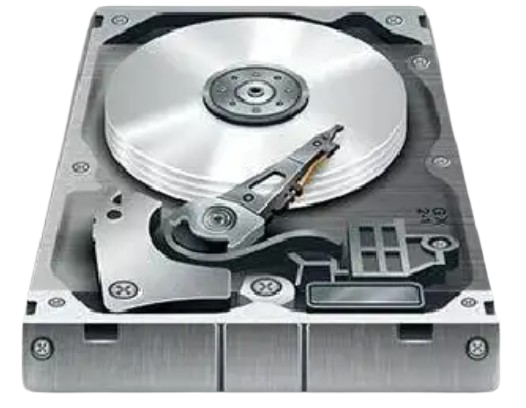
Mechanical HDDs contain spinning platters and moving read/write heads.
These components can experience wear, mechanical damage, or storage-media deterioration.
Victoria’s surface scanning feature can help identify unusual reading behavior.
Step 1: Confirm the HDD Is Stable Enough to Test
Before scanning, check for clicking noises, repeated disconnections, or serious reading problems.
If the drive contains irreplaceable files and is showing severe failure symptoms, avoid a full scan.
Step 2: Review HDD Health Data
Check available S.M.A.R.T. attributes.
Look for increasing reallocated sectors, pending sectors, and uncorrectable errors.
Step 3: Open the Testing Section
Navigate to Tests, Test & Repair, or the equivalent surface testing section.
The available controls depend on your version.
Step 4: Select Read Mode
Choose a suitable read-based diagnostic test.
Make sure no Write or Erase operation is enabled.
If the interface provides a separate action selection, choose a non-modifying option such as Ignore.
Step 5: Review the Scan Range
Victoria may allow you to examine selected portions of the device rather than scanning every available block.
Review the selected range before beginning.
Step 6: Start the Test
Begin the scan and monitor its progress.
The software may show a block map, graph, response-time categories, or numerical results.
Step 7: Check for Slow or Unreadable Areas
Look for patterns of:
- Slow blocks
- Very slow blocks
- Read errors
- Unreadable areas
- Widespread response-time problems
Step 8: Evaluate the Results
Compare the scan with S.M.A.R.T. information and real-world symptoms.
A single slow response does not prove physical damage.
Repeated errors and deteriorating health indicators are more concerning.
How to Test a SATA SSD With Victoria HDD/SSD
SATA SSDs use flash memory instead of mechanical platters.
Their controllers manage flash storage, error correction, and internal data placement.
Because of this, testing an SSD requires a different approach from testing a mechanical hard drive.
Step 1: Select the SATA SSD
Open Victoria and locate the SSD in the device list.
Confirm its model and capacity.
Step 2: Review Available Health Information
Open the S.M.A.R.T. section and examine supported indicators.
These may include:
- SSD wear or remaining-life estimates
- Total data written
- Temperature
- Media errors
- Available spare capacity
- Power-on hours
- Other manufacturer-specific values
Step 3: Investigate Reported Errors
Look for unusual changes in health indicators, repeated media errors, or reported device warnings.
Remember that different SSD manufacturers may use different attributes.
Step 4: Decide Whether a Scan Is Necessary
A full surface scan is not always necessary for a normally operating SSD.
If the SSD shows no unusual symptoms and its available health information is not concerning, repeated scanning may provide limited additional value.
Step 5: Use a Suitable Read Test If Needed
If you have a reason to investigate reading behavior, select a supported non-destructive read-based test.
Do not enable write or erase functions.
Step 6: Review the Results
Examine any reported errors or abnormal response times.
SSD response times can be influenced by controller behavior, background activity, firmware, and other factors.
A slow block does not directly identify a worn-out physical flash-memory cell.
Should You Use Remap on an SSD?
Modern SSDs manage unreliable flash locations internally through their firmware and controllers.
Users should generally avoid experimenting with HDD-style sector repair functions on SSDs.
If an SSD reports serious media errors or becomes unreliable, manufacturer-specific diagnostics and replacement may be more appropriate.
How to Test an NVMe SSD With Victoria HDD/SSD
NVMe SSDs use a high-performance storage protocol, commonly over PCIe.
Unlike traditional SATA drives, NVMe storage uses different commands and health reporting methods.
Victoria 5.x includes diagnostic functionality for compatible NVMe devices, but exact features depend on the software release and system configuration.
Step 1: Identify the NVMe Drive
Launch Victoria and locate your NVMe SSD.
Check its model, capacity, and identifying information.
If the drive does not appear, verify that Windows recognizes it and that the Victoria version supports the relevant interface.
Step 2: Open NVMe Health Information
Review the available device information and health indicators.
Supported data may include:
- Critical Warning
- Composite Temperature
- Available Spare
- Percentage Used
- Data Units Read
- Data Units Written
- Media and Data Integrity Errors
- Unsafe Shutdowns
Step 3: Understand Important NVMe Indicators
Critical Warning: Indicates device-reported conditions requiring attention.
Composite Temperature: Provides a reported device temperature.
Available Spare: Describes spare storage capacity according to the NVMe device’s reporting method.
Percentage Used: Estimates how much of the device’s expected endurance has been consumed.
Media and Data Integrity Errors: Reports relevant errors recorded by the device.
Unsafe Shutdowns: Records certain unexpected shutdown events.
These values provide useful information but should be interpreted using manufacturer guidance.
Step 4: Check Which Diagnostics Are Supported
Not every Victoria testing function is necessarily available for every NVMe SSD.
Controller access, drivers, firmware, and software version can affect compatibility.
Step 5: Run Further Testing Only If Appropriate
If a read-based test is available and there is a reason to investigate, confirm that the selected operation is non-destructive.
Avoid unnecessary erase or write-based operations.
Step 6: Review Results With Manufacturer Information
For deeper NVMe diagnostics, use the SSD manufacturer’s utility when available.
Manufacturer-specific software may provide additional information about firmware, endurance, thermal conditions, and device-specific warnings.
How to Test an External USB Hard Drive With Victoria
External storage devices introduce an additional component between the computer and the actual drive: the USB bridge or enclosure.
This hardware can influence which diagnostic commands are supported.
As a result, Victoria may recognize an external drive without providing access to every health or testing feature.
Step 1: Connect the External Drive
Use a reliable USB cable and a stable connection.
Avoid disconnecting the device while a diagnostic operation is active.
Step 2: Check Detection in Windows
Confirm that Windows recognizes the external storage device.
If the drive repeatedly disconnects, investigate the connection before running extensive tests.
Step 3: Open Victoria
Launch the application and locate the external drive.
Verify its model and capacity.
Step 4: Check Available S.M.A.R.T. Information
Open the health information section.
If S.M.A.R.T. data is missing, the USB adapter or enclosure may be blocking the necessary commands.
Step 5: Review Supported Test Options
Determine whether Victoria offers suitable non-destructive diagnostic operations for the device.
Some USB storage devices may support only limited testing.
Step 6: Run a Read-Based Test If Needed
If supported and appropriate, choose a non-destructive read-based operation.
Avoid Write, Erase, and advanced sector-handling actions.
Step 7: Check the Results
Review read errors, response times, and any reported connection problems.
If the device behaves differently across compatible connections, the USB cable or enclosure may be contributing to the problem.
Why Can’t Victoria Read S.M.A.R.T. on Some USB Drives?
Many USB enclosures use bridge controllers to translate commands between USB and the internal storage interface.
Some bridge controllers pass S.M.A.R.T. commands correctly, while others do not.
Therefore, missing S.M.A.R.T. data does not automatically prove that the underlying drive is damaged.
Victoria HDD Testing for USB SSDs and Flash Drives
USB SSDs and ordinary USB flash drives may appear similar from the outside, but they can expose different diagnostic capabilities.
An external SSD may contain a SATA or NVMe drive connected through a USB bridge.
A basic USB flash drive may use a controller that does not provide standard HDD-style S.M.A.R.T. information.
What Can Victoria Check?
Depending on compatibility, Victoria may be able to:
- Identify the storage device
- Read available device information
- Perform supported read-based diagnostics
- Report reading errors
- Measure response times
However, complete health information may not be available.
Can Victoria Detect Problems on a USB Flash Drive?
Victoria may help identify reading difficulties on supported devices.
However, it cannot guarantee a complete evaluation of flash-memory health.
For flash drives, other suitable diagnostic tools may be necessary when checking capacity, integrity, or writing behavior.
Any write-based integrity test should be performed only after backing up data because it may modify or erase stored information.
How to Understand Victoria HDD Test Results
After completing a diagnostic scan, the most important step is interpreting the results correctly.
Victoria may display different response-time categories, error counts, and visual indicators.
The appearance and timing thresholds depend on the software version.
Fast Response Blocks
Fast blocks complete diagnostic requests without obvious delays.
A large number of normally responding blocks is encouraging, but it does not guarantee that the drive is completely healthy.
Slow Response Blocks
Slow blocks take longer to respond.
Possible causes include read retries, temporary system workloads, device firmware behavior, interface issues, or storage deterioration.
Very Slow Response Blocks
Very slow blocks may indicate significant delays.
Repeated or clustered slow responses deserve additional investigation, particularly when S.M.A.R.T. warnings are also present.
Read Errors
Read errors occur when a requested reading operation does not complete normally.
Possible causes include media problems, controller issues, or communication failures.
Unreadable Blocks
Unreadable blocks are storage areas that could not be read successfully during the requested operation.
Repeated unreadable blocks are concerning, especially when accompanied by file-access problems or increasing health errors.
Victoria Scan Results Explained
| Scan result | Possible meaning | Recommended response |
|---|---|---|
| Normal response | The request completed without obvious delay | Continue normal monitoring |
| Slow response | Additional time was needed | Review the overall pattern |
| Very slow response | Possible repeated attempts or instability | Check S.M.A.R.T. and connection |
| Read error | Reading operation failed | Protect important data |
| Unreadable block | Potentially serious reading problem | Avoid unnecessary testing |
| Widespread errors | Possible device or interface deterioration | Consider replacement or professional diagnosis |
Do not interpret a drive’s condition using only one scan color or response-time value.
How Long Does a Victoria HDD Test Take?
There is no fixed duration for a Victoria test.
The time required depends on:
- Storage capacity
- HDD or SSD technology
- Connection speed
- Selected testing mode
- Scan range
- Device health
- Read retries
- Background system activity
A full scan of a large mechanical HDD may take substantially longer than a short diagnostic test on an SSD.
A failing hard drive may also spend additional time attempting to read problematic areas.
Why Is My Victoria Scan Taking So Long?
Possible causes include:
- A large scan range
- Many slow-reading areas
- Repeated read attempts
- Interface limitations
- System activity
- Storage-device instability
If the drive becomes unresponsive, disconnects repeatedly, or shows serious failure symptoms, avoid unnecessary continued testing.
Can You Test Your Windows System Drive With Victoria?
Victoria may be able to perform supported diagnostic operations on the drive containing Windows.
However, additional care is necessary.
The operating system continuously reads and writes information while the computer is running.
This activity can influence response-time measurements.
More importantly, data-modifying operations on the system drive can cause serious problems, including file loss or operating system corruption.
For a Windows system drive:
- Back up important information.
- Confirm the drive’s identity.
- Review available S.M.A.R.T. information first.
- Use only appropriate non-destructive tests.
- Avoid advanced write or erase functions.
- Consider alternative diagnostic methods if the drive is unstable.
If the system drive contains valuable inaccessible files, data recovery should take priority over intensive scanning.
Victoria HDD Test vs. Windows CHKDSK
Victoria and Windows CHKDSK investigate different aspects of storage problems.
Victoria focuses on storage-device health information and diagnostic response testing.
CHKDSK focuses primarily on Windows file-system consistency and certain file-system repair operations.
| Feature | Victoria HDD/SSD | Windows CHKDSK |
|---|---|---|
| Main purpose | Storage-device diagnostics | File-system checks |
| S.M.A.R.T. information | Supported | Not its primary function |
| Surface response-time testing | Supported | Not its primary purpose |
| File-system repair | Not its main function | Supported |
| Bad-sector investigation | Supported through relevant diagnostic operations | Can identify unreadable clusters during selected checks |
| Physical hardware repair | No | No |
Neither utility can physically repair damaged drive components.
If a storage device is seriously failing, intensive diagnostic or repair operations should not take priority over protecting valuable information.
Common Victoria HDD Testing Problems and Solutions
Victoria Does Not Detect My Hard Drive
First, confirm that Windows recognizes the device.
Possible reasons include:
- Storage connection problems
- Unsupported interfaces
- Controller restrictions
- Missing permissions
- USB bridge limitations
- Software compatibility issues
Check the device connection and Victoria version before assuming hardware failure.
Victoria Shows No S.M.A.R.T. Information
Some storage controllers or USB adapters do not pass the necessary health commands.
Try manufacturer-provided diagnostic software if compatible health information is unavailable.
Victoria Shows Many Slow Sectors
Multiple slow responses can indicate a storage problem, but they do not always mean permanent physical damage.
Review S.M.A.R.T. attributes, interface errors, and the drive’s normal behavior.
Victoria Reports Bad Sectors
Protect important files first.
Repeated unreadable blocks or increasing sector-related errors may indicate deteriorating storage reliability.
Do not immediately use Remap or Erase.
Victoria Stops Responding During a Scan
A drive that struggles to read certain areas may cause diagnostic operations to take longer.
Software, controller, and connection problems can also contribute.
If the storage device becomes unstable, stop unnecessary testing when safely possible.
Victoria Cannot Test My NVMe SSD
Not every Victoria release or storage configuration supports the same NVMe functions.
Verify the software version, drive compatibility, and available operating system access.
A manufacturer-specific diagnostic utility may provide additional information.
Victoria Detects My USB Drive but Cannot Scan It
The USB bridge, flash controller, or storage interface may not support the required commands.
Detection alone does not guarantee full testing compatibility.
What Should You Do After a Victoria HDD Test?
The next step depends on the overall diagnostic picture.
If the Drive Appears Healthy
Continue normal use, maintain regular backups, and watch for new symptoms.
If the Scan Shows Isolated Slow Blocks
Review whether the result is repeated or appears alongside other warnings.
One isolated slow response is not enough to confirm device failure.
If CRC Errors Are Increasing
Investigate cables, connectors, adapters, and communication problems.
If Pending or Reallocated Sectors Are Increasing
Back up important files and consider replacing the drive.
If the SSD Reports Serious Media Errors
Protect stored information and review manufacturer-specific diagnostic results.
Repeated errors may indicate the need for replacement.
If the HDD Makes Unusual Mechanical Noises
Avoid further unnecessary scanning.
Professional data recovery may be appropriate when valuable files are involved.
If the Drive Repeatedly Disconnects
Check connections and power-related issues.
If the device remains unstable, replacement may be safer.
When Should You Replace a Drive Instead of Testing It?
Testing is useful when it helps you make an informed decision.
However, continuing to test an obviously unreliable storage device can create additional risks.
Consider replacement when:
- Bad-sector counts continue increasing
- Pending sectors repeatedly return
- Uncorrectable errors are frequent
- Important files become corrupted
- The drive disconnects repeatedly
- Surface scans show widespread read failures
- Serious manufacturer health warnings appear
- The device can no longer be trusted with important information
A hard drive or SSD does not need to stop working completely before replacement becomes appropriate.
Common Mistakes to Avoid During Victoria HDD Testing
Choosing the Wrong Drive
Always check the storage device’s model and capacity before starting a test.
Selecting Write Instead of Read
Write Mode can overwrite existing information.
A routine health scan should not involve writing to important storage areas.
Enabling Erase or Remap Accidentally
Advanced sector-handling operations are not ordinary read-only diagnostics.
Review both the test mode and selected action before starting.
Repeatedly Scanning a Failing Mechanical HDD
Intensive reading can place additional stress on damaged mechanical hardware.
Assuming Every Slow Block Is a Bad Sector
Response times can be affected by several conditions.
One delayed block is not proof of physical damage.
Interpreting SSD Health Like HDD Health
SSDs use different storage technology, internal management methods, and health indicators.
Ignoring USB Connection Limitations
A USB enclosure may prevent Victoria from accessing complete device information.
Relying on a Single Diagnostic Result
No single S.M.A.R.T. value or surface scan can perfectly predict drive reliability.
Best Practices for Safe HDD, SSD, NVMe, and USB Testing
The following practices help keep your testing process focused and responsible.
- Maintain reliable backups of important information.
- Use a trustworthy Victoria software package.
- Confirm the selected storage device before testing.
- Review S.M.A.R.T. information before intensive diagnostics.
- Prefer non-destructive tests when appropriate.
- Avoid unnecessary Write, Erase, or Remap operations.
- Stop unnecessary testing when a mechanical drive shows serious failure symptoms.
- Interpret SSD and NVMe health information according to the device.
- Check USB bridge limitations when testing external storage.
- Replace unreliable drives before a complete failure occurs.
Frequently Asked Questions About Victoria HDD Testing
How do I run a Victoria HDD test?
Open Victoria, select the correct drive, review S.M.A.R.T. information, and choose a supported non-destructive diagnostic operation. If appropriate, run a read-based scan and examine the results for errors or abnormal response times.
Is Victoria HDD testing safe?
Victoria can perform diagnostic tests, but safety depends on the drive’s condition and selected settings. Read-only testing is generally less risky than write or erase operations, although it can still stress failing hardware.
Can Victoria test SSDs?
Yes. Victoria supports diagnostic functionality for compatible SSDs, including available S.M.A.R.T. information and selected tests.
Can Victoria test NVMe drives?
Victoria 5.x includes functionality for compatible NVMe SSDs. Available tests and health information depend on hardware and software compatibility.
Does Victoria support external USB drives?
Victoria may recognize and test compatible external USB HDDs and SSDs. Some USB adapters and enclosures restrict access to diagnostic commands.
What is the safest Victoria test mode?
Reviewing S.M.A.R.T. information first is generally safest. If a surface scan is appropriate, a supported Read test with a non-modifying action such as Ignore is usually preferable to Write or Erase.
What is the difference between Read and Verify in Victoria?
Read retrieves existing data from selected areas, while Verify uses supported device verification commands. The exact behavior and availability depend on the storage interface.
Can Victoria detect bad sectors?
Victoria can identify read errors and unreadable logical storage areas during supported scans. It cannot always determine the exact physical cause.
What do slow sectors mean in Victoria?
Slow sectors are areas that take longer to respond during testing. They may be associated with read retries, interface problems, controller activity, or storage deterioration.
Can Victoria repair bad sectors?
Victoria includes advanced sector-handling functions, but it cannot physically repair damaged storage hardware or guarantee recovery of lost information.
Can Victoria testing erase my data?
Yes. Write, Erase, and certain other advanced operations can modify or permanently destroy stored information.
Should I scan my SSD regularly?
Frequent full surface scans are usually unnecessary for a healthy SSD. Review supported health indicators and run additional diagnostics when there is a reason to investigate.
Why can’t Victoria read S.M.A.R.T. information from my USB drive?
The USB enclosure or adapter may block the commands needed to retrieve S.M.A.R.T. information.
Can I test a hard drive while Windows is running?
Some diagnostic operations may be supported while Windows is running. However, operating system activity can affect results, and data-modifying tests should be avoided on a drive containing important files.
How long does a Victoria surface scan take?
The duration varies depending on drive capacity, condition, interface speed, test mode, and scan range. There is no universal scan time.
Should I replace a drive with bad sectors?
Replacement is worth considering when bad-sector counts increase, read errors become frequent, or the drive shows continuing signs of unreliability.
Is Victoria better than CHKDSK?
The utilities serve different purposes. Victoria focuses on storage-device diagnostics, while CHKDSK primarily examines and repairs Windows file-system problems.
What should I do if Victoria finds unreadable blocks?
Protect important data, review available health information, and avoid unnecessary advanced operations. If the drive shows ongoing deterioration, consider replacement or professional recovery assistance.
Conclusion
Victoria HDD/SSD is a useful diagnostic utility for examining supported hard drives, SATA SSDs, NVMe drives, and certain external USB storage devices.
Its health monitoring and surface testing features can help users investigate slow reading behavior, reported errors, and other storage problems.
However, each storage technology requires a slightly different approach.
Mechanical HDDs may benefit from carefully selected read-based surface testing when they are stable enough, while SSDs and NVMe drives often provide more useful information through health and endurance indicators.
USB storage devices introduce additional compatibility considerations because their adapters and controllers may restrict diagnostic access.
The safest approach is to identify the correct device, review available health information, use non-destructive testing when appropriate, and avoid advanced operations that could overwrite existing files.
Always prioritize your data over completing a test. If a storage device shows serious signs of failure, protecting important files and replacing unreliable hardware is often more valuable than running additional scans.
Used carefully, Victoria HDD/SSD can help you understand storage behavior and make better decisions about drive maintenance, troubleshooting, and replacement.