Is your computer taking longer than usual to open files? Does your hard drive sometimes freeze, make unusual noises, or struggle during file transfers? These symptoms can be frustrating, especially when you do not know whether your storage device is healthy.
Victoria HDD/SSD is a Windows-based diagnostic utility that helps you check the condition of compatible hard disk drives (HDDs), solid-state drives (SSDs), and other storage devices.
The software can display S.M.A.R.T. health information, measure response times, scan storage areas, and identify slow or unreadable blocks. These features can help you understand whether your drive is operating normally or showing possible signs of trouble.
If you have never used drive diagnostic software before, some of Victoria’s technical terms and settings may look confusing. However, you do not need to understand every advanced feature to perform a basic health check.
This beginner-friendly guide explains how to use Victoria HDD/SSD to check drive health, understand S.M.A.R.T. values, recognize slow sectors, and safely interpret your results.
How Can Beginners Check Drive Health With Victoria HDD/SSD?
To check drive health with Victoria HDD/SSD, open the program, select the correct storage device, and review its S.M.A.R.T. information. Look for reported errors, pending sectors, reallocated sectors, and other health indicators.
If the drive is stable and further testing is necessary, you can use a non-destructive Read test to examine storage response times.
Follow these basic steps:
- Back up important files.
- Open Victoria HDD/SSD on your Windows computer.
- Select the drive you want to check.
- Confirm its model and storage capacity.
- Open the S.M.A.R.T. section.
- Review available health information.
- Check for errors or unusual values.
- Use a read-based surface scan if appropriate.
- Review slow sectors and unreadable blocks.
- Decide whether the drive needs further attention.
Beginner safety tip: Avoid Erase, Write, Remap, or other data-modifying operations unless you fully understand their effects and have a verified backup.
What Is Victoria HDD/SSD?
Victoria HDD/SSD is a storage diagnostic program used to examine the health and performance of supported storage devices.
It was developed to help users retrieve information from hard drives and investigate how those drives respond during diagnostic testing.
Modern releases also support diagnostic functions for certain SSDs, NVMe drives, and external storage devices.
Unlike ordinary Windows file management tools, Victoria focuses on information reported by the underlying storage hardware.
For example, Windows may show that your drive has enough free space, but this does not tell you whether its storage media is developing read errors.
Victoria can provide additional diagnostic information that may help you investigate these concerns.
What Can Victoria HDD/SSD Check?
Depending on the drive and software version, Victoria may help you examine:
- Hard drive health information
- S.M.A.R.T. attributes
- Slow storage sectors
- Unreadable blocks
- Drive response times
- Reallocated sectors
- Pending sectors
- Interface communication errors
- SSD wear information
- Drive temperature
- Certain NVMe health indicators
These features are useful when you want to understand why a storage device may be slow, unstable, or difficult to access.
Is Victoria HDD/SSD Suitable for Beginners?
Yes, beginners can use Victoria to review basic drive information and supported S.M.A.R.T. readings.
However, the program also includes advanced functions intended for users who understand storage operations and their risks.
For your first health check, focus on identifying the correct drive, reading health information, and understanding the results.
You do not need to use repair-related functions to learn whether your drive is showing warning signs.
Why Should You Check Your Hard Drive or SSD Health?
Storage devices can develop problems over time.
A mechanical hard drive contains moving parts that may wear out. An SSD uses flash memory and electronic components that can also develop failures.
Sometimes, these problems appear gradually.
For example, a hard drive may begin taking longer to read certain files before more serious errors occur.
Other failures may happen suddenly without obvious warning.
Checking drive health can help you investigate possible problems, but it cannot guarantee that a device will continue working.
Common Signs of Storage Problems
You may want to examine your drive if you notice:
- Files opening unusually slowly
- Repeated freezing during file transfers
- Unexpected read or write errors
- Files becoming corrupted
- A drive disconnecting without warning
- Unusual clicking sounds from a mechanical HDD
- Repeated storage-related Windows errors
- Significant changes in drive performance
These symptoms do not always mean the storage device is damaged.
Software problems, cables, controllers, or other computer components may also cause similar behavior.
Victoria can help provide additional information when investigating the cause.
Before Using Victoria: Five Important Safety Rules
Beginners should understand several precautions before testing their storage devices.
1. Back Up Important Files
Always protect important files before attempting advanced storage operations.
Save copies on a separate storage device or another reliable backup location.
If possible, confirm that the backup contains the files you need.
2. Do Not Experiment With Advanced Settings
Victoria includes options that may modify or erase stored information.
Avoid selecting unfamiliar actions simply to see what they do.
3. Identify the Correct Storage Device
A computer may contain several drives.
Always confirm the model and capacity of the device you intend to examine.
4. Avoid Intensive Testing on a Failing Drive
If a mechanical hard drive repeatedly clicks, disconnects, or becomes unresponsive, extended scanning may place additional stress on the hardware.
If the drive contains valuable data, professional recovery assistance may be safer than continuing to test it.
5. Start With S.M.A.R.T. Information
Reviewing S.M.A.R.T. data is generally a better first step than immediately performing a full surface scan.
This allows you to examine available health indicators without intentionally overwriting user data.
How to Open Victoria HDD/SSD for the First Time
Before checking drive health, make sure you have a trustworthy software package.
Victoria is available in Windows versions, and its interface may vary depending on the release.
Step 1: Download the Software
Obtain Victoria HDD/SSD from a trustworthy source.
Before opening the program:
- Check the software version.
- Review the download source.
- Avoid misleading download buttons.
- Scan the downloaded package using suitable security software.
- Extract the archive if necessary.
Some Victoria releases are distributed as portable applications, meaning they can run without a traditional installation process.
Step 2: Launch Victoria
Open the appropriate Victoria executable file.
Some features may require administrator privileges.
After launching, allow the application to identify connected storage devices.
Step 3: Become Familiar With the Interface
Depending on the release, Victoria may contain sections such as:
Drive Info: Displays connected storage devices and their identifying information.
S.M.A.R.T.: Shows supported health attributes and other drive-reported information.
Test & Repair: Contains diagnostic scanning features and advanced sector-related operations.
Settings: Provides options for program behavior and test configuration.
The exact names and appearance may differ between versions.
For beginners, the most important sections are drive identification and S.M.A.R.T. information.
How to Select the Correct Drive in Victoria
Selecting the correct device is essential.
For example, your computer may contain a 500 GB SSD used for Windows and a separate 1 TB hard drive used for photos, documents, and other files.
You need to make sure Victoria is examining the intended drive.
Step-by-Step Drive Selection
- Open the drive selection area.
- Review the available devices.
- Find the drive you want to examine.
- Check its manufacturer and model number.
- Confirm the reported storage capacity.
- Review any additional identifying information.
- Select the intended device.
Do not rely only on the drive letter shown in Windows.
The device model and capacity provide a more reliable way to confirm your selection.
Why Does Victoria Show Multiple Drives?
Victoria may display multiple devices because your computer contains more than one storage drive.
It may also detect compatible external storage devices connected through USB.
Some entries can represent storage devices with different interfaces or capabilities.
If you are unsure which device is correct, compare the displayed model information with Windows Device Manager or other trusted system information before proceeding.
What Is S.M.A.R.T. in Victoria HDD/SSD?
S.M.A.R.T. stands for Self-Monitoring, Analysis and Reporting Technology.
It is a system used by many storage devices to report information about their condition, usage, and certain internal errors.
Think of S.M.A.R.T. as a collection of health-related measurements maintained by the drive.
For example, it may report how long the device has been powered on, whether certain sectors have been reallocated, and whether communication errors have occurred.
Victoria retrieves supported information and displays it so users can review the available health indicators.
Why Is S.M.A.R.T. Important?
S.M.A.R.T. data can help identify possible warning signs, sometimes before a device stops working completely.
However, it has limitations.
A drive may report normal health values and still experience an unexpected hardware failure.
For this reason, S.M.A.R.T. should be treated as one part of a broader drive health assessment.
How to Check S.M.A.R.T. Data in Victoria
Checking S.M.A.R.T. information is one of the simplest ways for beginners to start examining a drive.
Step 1: Select Your Drive
Choose the correct storage device from Victoria’s device list.
Verify its model and capacity.
Step 2: Open the S.M.A.R.T. Section
Locate the S.M.A.R.T. area.
Some versions provide a button to retrieve or refresh the reported attributes.
Step 3: Review the Health Information
Victoria may display a table of attributes with identification numbers, reported values, and other details.
The appearance depends on the drive and software version.
Step 4: Look for Important Warning Signs
For a mechanical hard drive, pay particular attention to:
- Reallocated Sector Count
- Current Pending Sector Count
- Uncorrectable errors
- UDMA CRC errors
- Temperature
- Other device-specific warnings
For SSDs, wear information and media-error indicators may also be relevant.
Step 5: Record Important Values
If you are investigating an ongoing problem, record the relevant values or save a screenshot.
Comparing readings over time can help you identify whether errors are increasing.
Understanding S.M.A.R.T. Data: A Simple Beginner’s Guide
S.M.A.R.T. reports contain technical terms that can be confusing.
The following explanations cover several common measurements.
Reallocated Sector Count
A reallocated sector is a physical sector that a drive has replaced with an available spare sector.
This may happen when the original sector becomes unreliable.
For example, if a mechanical drive reports an increasing number of reallocated sectors, it may be experiencing continuing storage-media problems.
A small, stable count does not automatically indicate immediate failure.
However, increasing counts deserve attention.
What beginners should do: Back up important files and monitor the trend. Consider replacing the drive if errors continue increasing.
Current Pending Sector Count
Pending sectors are storage areas that the drive has had difficulty reading.
The firmware may need to reassess them during later operations.
Pending sectors can be concerning because information stored in those areas may be difficult to access.
What beginners should do: Protect important data and avoid unnecessary write or repair operations.
Uncorrectable Sector Errors
An uncorrectable error indicates that a drive could not successfully recover certain information under the reported conditions.
Repeated or increasing errors can signal significant storage problems.
What beginners should do: Back up accessible files and consider professional help if important data cannot be retrieved.
UDMA CRC Error Count
CRC errors often point to communication problems between the computer and storage device.
Possible causes include:
- Damaged SATA cables
- Loose connections
- Faulty adapters
- Unstable interfaces
A nonzero historical value does not always mean the problem is ongoing.
Newly increasing errors are more useful when investigating an active issue.
What beginners should do: Check relevant connections if you can do so safely.
Power-On Hours
Power-On Hours reports how long a storage device has been powered on, according to the drive’s internal records.
A higher value may indicate extensive usage.
However, a drive should not be considered unhealthy simply because it has operated for many hours.
Other health indicators are also important.
Drive Temperature
Some storage devices report their operating temperature.
A drive operating outside its manufacturer’s recommended temperature range may experience reliability problems.
Check the manufacturer’s specifications when evaluating temperature readings.
S.M.A.R.T. Attribute Table for Beginners
| Attribute | Common HDD ID | Simple explanation |
|---|---|---|
| Reallocated Sector Count | 05 | Sectors replaced with spare areas |
| Power-On Hours | 09 | Reported operating time |
| Current Pending Sector Count | C5 / 197 | Areas the drive has difficulty reading |
| Offline Uncorrectable | C6 / 198 | Errors that could not be corrected during relevant operations |
| UDMA CRC Error Count | C7 / 199 | Storage communication errors |
| Temperature | Often C2 / 194 | Reported operating temperature |
These IDs are common on traditional HDDs but are not universal across all storage devices.
An SSD may report different attributes or use manufacturer-specific formats.
What Do Current, Worst, Threshold, and Raw Values Mean?
Victoria may display several columns in a traditional HDD S.M.A.R.T. report.
Understanding these columns helps beginners avoid misreading the information.
Current Value
The Current Value is usually a normalized value calculated by the drive manufacturer.
It is not necessarily the raw number of errors.
Worst Value
The Worst Value generally records the worst normalized value reported during the drive’s operation, where supported.
Threshold
The Threshold is a manufacturer-defined reference value associated with certain failure assessments.
Its interpretation depends on the specific attribute and drive.
Raw Value
The Raw Value contains the underlying information reported by the device.
For some attributes, this may be a counter. For others, it may contain encoded or manufacturer-specific information.
For example, the raw value of a sector-related attribute may represent a count, while another attribute may use a more complex format.
Beginner tip: Do not assume that every high raw value means a drive is failing. Different attributes use different reporting methods.
What Are Slow Sectors in Victoria HDD?
A slow sector is a storage area that takes longer than expected to respond during a diagnostic request.
When Victoria performs a read-based surface scan, it measures how quickly the drive responds to reading requests.
If a particular area responds more slowly than others, Victoria may display it in a slower response-time category.
Slow sectors can be associated with:
- Additional read attempts
- Temporary system activity
- Storage-media instability
- Interface problems
- Controller behavior
- Developing hardware issues
However, a slow sector is not automatically a bad sector.
Slow Sector vs. Bad Sector
The difference is straightforward.
A slow sector takes longer to respond but may still be readable.
A bad or unreadable sector cannot reliably complete the requested read or write operation.
For example, a block that takes longer than surrounding blocks to read may still return its data successfully.
An unreadable block may fail the read request entirely.
This distinction is important because not every slow response requires drive replacement.
How Does Victoria Detect Slow Sectors?
Victoria can scan selected logical storage areas and record their response times.
The software may then group results into different timing categories.
Depending on the version, these categories may appear through colors, graphs, or numerical results.
For example, the scan might show that most blocks respond normally while a smaller group takes much longer.
This pattern could justify further investigation.
However, response times can also be affected by other activity on the computer.
A single slow block does not prove that the physical storage media is damaged.
How to Check Slow Sectors With Victoria HDD/SSD
If the drive is stable and additional testing is appropriate, a read-based scan may help you investigate unusually slow storage behavior.
Step 1: Check the Drive’s Condition
Before scanning, determine whether the drive is showing serious signs of failure.
If a mechanical HDD is clicking, disconnecting repeatedly, or becoming difficult to access, avoid unnecessary testing.
Step 2: Review S.M.A.R.T. Information
Look for important health warnings.
If the drive already reports serious errors, protect your data before considering further diagnostics.
Step 3: Open the Testing Section
Find the Tests or Test & Repair section in Victoria.
The name may differ depending on the version.
Step 4: Select a Read-Based Mode
Choose an appropriate non-destructive Read test when available.
If the interface also offers actions such as Ignore, Remap, or Erase, select a non-modifying diagnostic action such as Ignore.
Do not enable corrective or data-modifying operations for a basic health scan.
Step 5: Start the Scan
Begin the test and monitor the results.
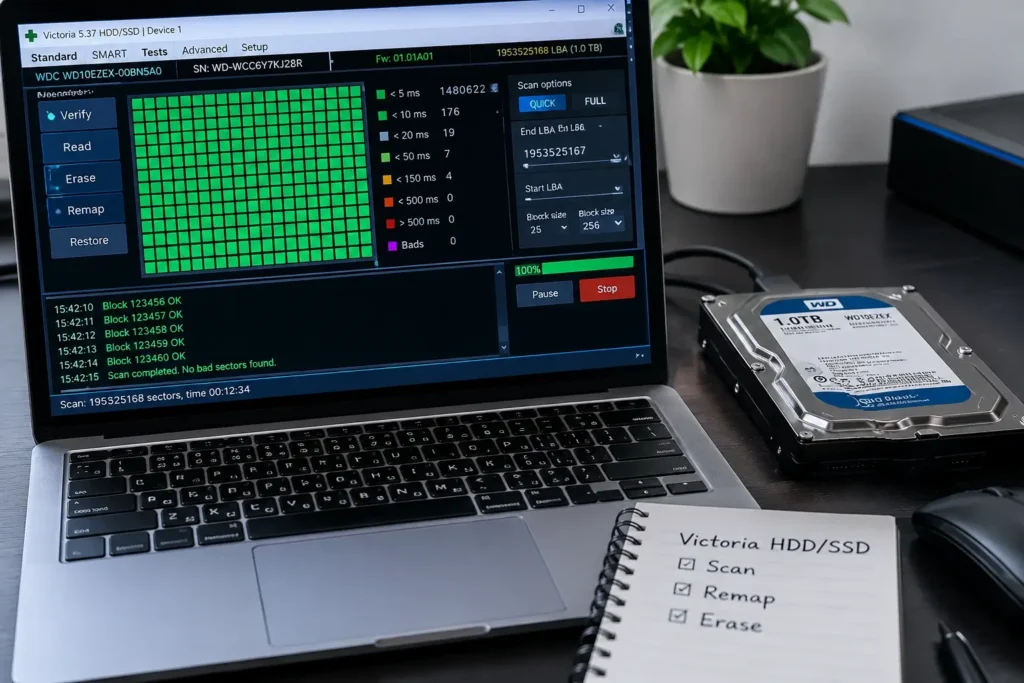
Victoria may display a progress indicator and response-time categories.
Step 6: Review Slow Blocks and Errors
Look for:
- Many slow blocks
- Repeated reading delays
- Unreadable areas
- Read errors
- Patterns of worsening performance
If the drive becomes unstable, stop unnecessary testing when safely possible.
Step 7: Compare Results With S.M.A.R.T. Information
A surface scan alone does not provide a complete diagnosis.
Compare the results with the drive’s reported health information and actual behavior.
Understanding Victoria Surface Scan Colors
Victoria may use colors to represent response-time categories.
However, the exact colors and time thresholds depend on the software version and settings.
Rather than memorizing one universal color chart, beginners should use the legend displayed by their version.
What Do Fast Blocks Mean?
Fast blocks indicate that the corresponding requests completed within shorter response-time ranges.
This is generally encouraging but does not guarantee overall drive health.
What Do Slow Blocks Mean?
Slow blocks indicate longer response times.
They may be caused by read retries, device activity, connection limitations, or other problems.
What Do Unreadable Blocks Mean?
Unreadable blocks indicate that the device could not successfully complete the requested read operation.
Repeated unreadable blocks deserve attention, particularly when the drive also reports health warnings.
Simple Surface Scan Results Table
| Result | Possible meaning | Beginner action |
|---|---|---|
| Fast blocks | Normal-looking response | Continue regular backups |
| Some slow blocks | Additional reading delays | Review the overall pattern |
| Many slow blocks | Possible performance or media problem | Check S.M.A.R.T. and connections |
| Read errors | Reading request failed | Back up important data |
| Unreadable blocks | Potential serious storage issue | Avoid unnecessary tests |
| Repeated widespread errors | Possible declining drive reliability | Consider replacement or professional diagnosis |
Does One Slow Sector Mean the Hard Drive Is Failing?
No.
One slow sector does not automatically mean that a hard drive is failing.
A single slow response may occur because of temporary activity, firmware behavior, or other factors.
What matters more is the overall pattern.
For example, a drive with one isolated slow response and no other problems may be less concerning than a drive showing increasing unreadable areas, pending sectors, and frequent file-access errors.
Beginners should avoid making decisions based on one reading.
How to Check SSD Health With Victoria
Victoria can also display supported health information from compatible SSDs.
However, SSDs operate differently from traditional hard drives.
Instead of spinning platters and moving heads, SSDs store information using flash memory.
Their controllers manage where information is placed and how storage cells are used.
Important SSD Health Indicators
Depending on the device, you may see:
- Percentage Used
- Remaining Life
- Available Spare
- Media Errors
- Temperature
- Total Data Written
- Unsafe Shutdowns
These measurements can help you understand the SSD’s reported condition.
Should Beginners Scan an Entire SSD?
Not necessarily.
For an SSD that is operating normally, reviewing health information may be more useful than repeatedly performing full surface scans.
A read-based scan can sometimes help investigate specific issues, but scan results do not directly reveal the physical condition of individual flash-memory cells.
Avoid unnecessary write-heavy testing, which consumes SSD endurance and may overwrite existing data.
Can Victoria Check NVMe SSD Health?
Supported Victoria 5.x versions include diagnostic features for certain NVMe storage devices.
NVMe SSDs use a different communication protocol from traditional SATA drives.
Depending on compatibility, Victoria may display information about temperature, wear estimates, spare capacity, media errors, and other health indicators.
Important NVMe Measurements
Critical Warning: Indicates device-reported conditions that may need attention.
Percentage Used: An estimate of the amount of endurance consumed.
Available Spare: Information about reserve storage capacity.
Media and Data Integrity Errors: Reported media or data integrity problems.
Unsafe Shutdowns: Events involving an unexpected shutdown sequence.
If Victoria cannot display some NVMe information, manufacturer-specific diagnostic software may provide additional details.
Can Victoria Test an External USB Hard Drive?
Victoria may recognize compatible external HDDs and SSDs connected through USB.
However, the USB enclosure can affect which diagnostic commands reach the underlying storage device.
For example, Victoria may identify an external drive but fail to display complete S.M.A.R.T. information.
This does not automatically mean the storage device is damaged.
The USB adapter or bridge may simply prevent access to the required information.
Beginners should confirm device compatibility before attempting further diagnostics.
How to Know Whether Your Hard Drive Is Healthy
There is no single number that can guarantee the health of every storage device.
However, combining several observations can help you make a more informed decision.
Signs That a Drive May Be Operating Normally
A drive may appear stable when:
- It has no concerning health warnings.
- Important error counts are not increasing.
- Files open normally.
- The drive remains connected.
- No unusual mechanical symptoms are present.
- Relevant diagnostic tests show no repeated errors.
Even in this situation, maintain regular backups.
Signs That a Drive Needs Attention
Potential warning signs include:
- Increasing pending sectors
- Increasing reallocated sectors
- Repeated uncorrectable errors
- Frequent file-access delays
- Repeated unexpected disconnections
- Widespread read failures
- Unusual mechanical noises
These signs deserve investigation.
Signs That Replacement May Be Safer
Consider replacing the drive when it develops continuing storage errors, repeatedly corrupts files, or can no longer be trusted with important information.
A drive does not need to stop functioning completely before replacement becomes appropriate.
Beginner Example: Understanding a Victoria Health Report
Imagine that you check a mechanical HDD and find the following hypothetical results:
| Health indicator | Example result |
|---|---|
| Reallocated Sector Count | 0 |
| Current Pending Sector Count | 0 |
| Uncorrectable Sector Count | 0 |
| UDMA CRC Error Count | 12 |
| Surface scan | No repeated read errors |
At first glance, the drive does not show obvious sector-related warnings.
However, the historical CRC count suggests that communication errors occurred at some point.
This does not automatically mean the recording surface is damaged.
If the CRC count remains unchanged, the problem may no longer be active.
If the count continues increasing, checking cables or adapters may be appropriate.
Remember: These numbers are examples for learning purposes, not actual Victoria results or universal health thresholds.
Common Beginner Mistakes When Using Victoria HDD/SSD
Selecting the Wrong Drive
Always verify the model and capacity.
Using Erase Instead of Read
Erase can overwrite information and permanently destroy files.
Assuming Every Slow Block Is Damaged
Slow responses can have different causes.
Ignoring S.M.A.R.T. Warnings
Increasing errors may indicate that the drive is becoming unreliable.
Repeating Full Scans Too Often
Unnecessary scanning can place additional stress on a failing mechanical drive.
Believing Remap Completely Repairs a Drive
Remapping does not physically restore damaged storage media.
Assuming Normal Health Means Zero Risk
Even drives with normal-looking health information can fail unexpectedly.
What Should You Do After Checking Drive Health?
After reviewing your results, decide on the next action based on the overall condition of the device.
If the Drive Looks Healthy
Continue normal use, maintain backups, and monitor new symptoms.
If the Drive Shows Slow Sectors
Review whether the delays are isolated or widespread.
Check S.M.A.R.T. information and possible connection problems.
If CRC Errors Are Increasing
Investigate the relevant cables, connectors, or adapters.
If Pending or Reallocated Sectors Are Increasing
Back up important files and consider replacing the drive.
If Important Files Are Becoming Unreadable
Avoid unnecessary tests.
Consider professional data recovery assistance if the information is valuable.
If the Drive Makes Clicking Sounds
Do not perform repeated surface scans on a mechanically failing drive containing important data.
Protecting the information should be your priority.
When Should You Replace an HDD or SSD?
Replacing a storage device is worth considering when it shows repeated signs of unreliability.
These may include increasing error counts, frequent disconnections, corrupted files, or persistent hardware warnings.
For mechanical hard drives, repeated clicking or grinding noises may indicate serious internal problems.
For SSDs, repeated media errors, critical warnings, and persistent access problems may indicate a need for replacement.
The goal is to replace unreliable hardware before an unexpected failure causes more serious data loss.
Frequently Asked Questions About Victoria HDD/SSD for Beginners
Is Victoria HDD/SSD easy to use for beginners?
Victoria’s basic drive identification and S.M.A.R.T. features can be useful for beginners. However, advanced options require caution because some can modify or erase data.
How do I check hard drive health using Victoria?
Open Victoria, select the correct drive, confirm its model and capacity, and review the available S.M.A.R.T. attributes. Use additional non-destructive diagnostics only when appropriate.
What is S.M.A.R.T. in Victoria HDD?
S.M.A.R.T. is a drive monitoring system that reports information about health, usage, errors, and operating conditions. Victoria displays supported attributes for users to review.
What are slow sectors in Victoria?
Slow sectors are storage areas that take longer than expected to respond during testing. They may indicate read retries, storage instability, interface problems, or temporary delays.
Are slow sectors the same as bad sectors?
No. A slow sector may still be readable, while a bad or unreadable sector cannot reliably complete the requested operation.
What does Reallocated Sector Count mean?
It reports information about physical sectors that have been replaced with spare areas by the drive firmware. Increasing counts may indicate ongoing deterioration.
What does Current Pending Sector Count mean?
It indicates sectors that the drive has difficulty reading and may need to reassess. Recurring or increasing pending sectors can be concerning.
What is the safest way to test a drive with Victoria?
Start by reviewing S.M.A.R.T. information. If further testing is needed and the drive is stable, choose an appropriate non-destructive Read test without data-modifying actions.
What does Ignore mean in Victoria?
Ignore is generally a diagnostic action used without requesting corrective sector operations. It can be appropriate alongside supported read-based testing.
Can Victoria erase my hard drive?
Yes. Victoria includes advanced operations that can overwrite stored information. Avoid Erase and Write unless you understand their effects.
Does Victoria work with SSDs?
Yes. Victoria can retrieve supported diagnostic information from compatible SSDs, although available features vary by device and software version.
Can Victoria test an NVMe SSD?
Supported Victoria 5.x versions offer certain NVMe diagnostic functions. Available information depends on the storage device and system configuration.
Why does Victoria show slow blocks?
Slow blocks may be caused by read retries, interface problems, firmware activity, or storage instability. The overall pattern is more informative than one slow response.
Can Victoria repair bad sectors?
Victoria includes advanced sector-handling functions, but it cannot physically repair damaged storage hardware or guarantee successful recovery of lost data.
What should I do if Victoria finds bad sectors?
Back up important files, review the complete diagnostic information, and check whether errors are increasing. Consider replacement when the drive becomes unreliable.
Can I use Victoria on my Windows system drive?
Some diagnostic operations may be possible on the Windows system drive. However, normal operating system activity can affect scan results. Avoid data-modifying operations on a drive containing important files or your operating system.
Does a healthy S.M.A.R.T. report guarantee my drive is safe?
No. S.M.A.R.T. information is useful but cannot predict every type of drive failure. Regular backups remain necessary.
Should I scan my hard drive every day?
Daily full surface scans are generally unnecessary. Review health information when appropriate and use intensive scans only when there is a reason to investigate.
Conclusion
Victoria HDD/SSD is a useful diagnostic utility for beginners who want to understand their storage devices better.
Its S.M.A.R.T. monitoring and read-based testing features can help identify potential problems involving drive health, slow sectors, unreadable blocks, and storage errors.
However, the most important part of using Victoria is understanding what the results mean.
One slow sector does not automatically indicate a failing drive, and a normal S.M.A.R.T. report does not guarantee that hardware will never fail.
For beginners, the best approach is simple: select the correct drive, review its health information, use non-destructive diagnostics when appropriate, and avoid advanced options that could damage or delete data.
Always protect your important files before attempting repair-related operations. If a drive shows serious or increasing errors, replacing it or seeking professional assistance may be safer than continuing to test it.
By learning these basic principles, you can use Victoria HDD/SSD with greater confidence and make more informed decisions about your hard drive or SSD health.