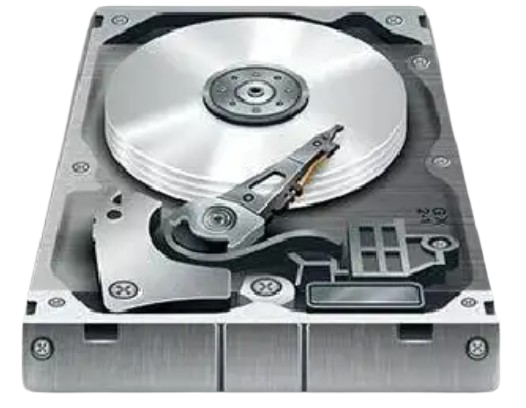

Your hard drive may appear to work normally even when it is developing storage problems. Files might open more slowly, Windows may freeze during file transfers, or certain data may become difficult to access. In some cases, there are no obvious warning signs until the drive stops working.
One way to investigate these problems is by checking your storage device’s S.M.A.R.T. health information.
Victoria HDD/SSD is a Windows-based storage diagnostic utility that can display S.M.A.R.T. attributes from compatible hard drives and solid-state drives. These attributes provide useful information about errors, operating conditions, and possible signs of storage deterioration.
However, understanding S.M.A.R.T. results can be confusing. Terms such as Reallocated Sector Count, Current Pending Sector Count, Offline Uncorrectable, and UDMA CRC Error Count may not be familiar to everyday computer users.
This guide explains what these values mean, how to read them in Victoria HDD, what warning signs to watch for, and when a storage problem may require a backup, connection repair, or drive replacement.
What Is S.M.A.R.T. in Victoria HDD?
S.M.A.R.T. stands for Self-Monitoring, Analysis and Reporting Technology. It is a monitoring system used by many hard drives and SSDs to report information about their health, operating conditions, usage, and errors.
Supported storage devices maintain this information internally through their firmware.
Victoria HDD reads available S.M.A.R.T. attributes and displays them so users can examine the condition of their storage devices.
Depending on the drive, S.M.A.R.T. information may include:
- Reallocated sector counts
- Pending sectors
- Uncorrectable errors
- Interface communication errors
- Power-on hours
- Drive temperature
- Start-stop counts
- SSD wear indicators
- Media errors
- Other manufacturer-specific attributes
These values can help identify possible storage problems, but S.M.A.R.T. information is not a perfect prediction of hardware failure.
A drive with normal-looking attributes may still fail unexpectedly.
Why Is S.M.A.R.T. Important for Drive Health?
S.M.A.R.T. information can reveal problems that are not always obvious during normal computer use.
For example, a mechanical hard drive may still open files successfully while its reallocated sector count slowly increases.
Another drive may show interface communication errors caused by a damaged SATA cable.
By reviewing these attributes, you can investigate whether the problem may involve the storage media, the drive’s connection, or another component.
The most useful approach is to examine multiple attributes and compare changes over time rather than relying on one number.
How Does Victoria HDD Read S.M.A.R.T. Data?
Victoria communicates with supported storage devices through the available Windows storage interfaces.
When you request S.M.A.R.T. information, Victoria retrieves the health data reported by the selected drive.
It then presents the available attributes, values, and other information in its interface.
The exact layout and available fields depend on the software version and storage device.
How to Check S.M.A.R.T. in Victoria HDD
Follow these steps to review your drive’s health information.
Step 1: Open Victoria HDD/SSD
Launch a trustworthy copy of Victoria on your Windows computer.
Some diagnostic functions may require administrator privileges.
Step 2: Select the Correct Drive
Locate your hard drive or SSD in the device list.
Confirm its model and capacity before continuing.
This is especially important if your computer contains multiple storage devices.
Step 3: Open the S.M.A.R.T. Section
Select the area used to display drive health attributes.
Some versions include a button labeled “Get SMART” or a similar command.
Step 4: Review the Available Attributes
Look through the information displayed by Victoria.
Pay particular attention to sector-related errors, communication errors, and other device-specific warnings.
Step 5: Check Raw Values and Trends
Review the available raw values where their meanings are known.
Record important results so you can compare them with future readings.
Step 6: Decide Whether Further Investigation Is Necessary
If the drive shows increasing errors or serious warning signs, protect important files before running additional tests.
S.M.A.R.T. checks are generally a safer starting point than immediately performing a full surface scan on an unstable hard drive.
Understanding Victoria HDD S.M.A.R.T. Columns
Victoria may display several columns for traditional ATA or SATA hard drives.
These columns contain different types of information, and understanding them is essential for reading a health report correctly.
Attribute ID
The Attribute ID identifies a specific health measurement reported by the drive.
For example, attribute 05 commonly represents Reallocated Sector Count on traditional HDDs.
Different manufacturers may use certain IDs differently.
Current Value
The Current Value is usually a normalized number calculated by the drive firmware.
It is not necessarily the actual number of errors.
For many traditional attributes, a higher normalized value generally represents a better condition, but the interpretation depends on the manufacturer.
Worst Value
The Worst Value generally records the worst normalized reading reported for that attribute.
This can provide information about how an attribute has behaved over time.
Threshold
The Threshold is a reference value established by the drive manufacturer.
For traditional S.M.A.R.T. attributes with defined failure thresholds, a normalized value reaching or falling below the threshold can indicate that the attribute has failed its threshold assessment.
However, passing the threshold does not guarantee that the storage device is healthy.
Raw Value
The Raw Value contains the underlying information reported by the storage device.
Depending on the attribute, it may represent:
- A sector count
- An error counter
- Operating time
- A temperature measurement
- A manufacturer-specific encoded value
Not every raw value can be interpreted as a straightforward decimal count.
Some manufacturers use special formats or combine multiple measurements into one raw field.
Example of a S.M.A.R.T. Report
The following table uses hypothetical values to illustrate how a traditional HDD report might appear.
| Attribute | Current | Worst | Threshold | Raw |
|---|---|---|---|---|
| Reallocated Sector Count | 100 | 100 | 36 | 0 |
| Power-On Hours | 95 | 95 | 0 | 8,450 |
| Current Pending Sector Count | 100 | 100 | 0 | 2 |
| Offline Uncorrectable | 100 | 100 | 0 | 0 |
| UDMA CRC Error Count | 200 | 200 | 0 | 14 |
These values are illustrative only, not a real Victoria report or universal manufacturer thresholds.
Notice that Current Pending Sector Count has a normalized value of 100 but a raw value of 2.
This shows why looking only at the normalized score can be misleading.
The raw value may reveal pending sectors even when the normalized attribute has not reached its failure threshold.
Important Victoria HDD S.M.A.R.T. Attributes Explained
The following attributes are commonly relevant when diagnosing mechanical hard drives.
| S.M.A.R.T. attribute | Common ID | What it reports |
|---|---|---|
| Reallocated Sector Count | 05 | Physical sectors replaced with spare sectors |
| Power-On Hours | 09 | Reported operating time |
| Current Pending Sector Count | 197 / C5 | Sectors awaiting reassessment |
| Offline Uncorrectable | 198 / C6 | Uncorrectable errors associated with relevant operations |
| UDMA CRC Error Count | 199 / C7 | Interface communication errors |
| Temperature | Often 194 / C2 | Reported drive temperature |
These identifiers are commonly used on traditional ATA/SATA hard drives. Their meanings and raw formats are not guaranteed to be identical across all manufacturers, and SSDs may use different attributes.
What Is Reallocated Sector Count in Victoria HDD?
Reallocated Sector Count is one of the most important attributes when investigating mechanical hard drive reliability.
It commonly appears as S.M.A.R.T. attribute 05.
A hard drive stores information in physical sectors on its recording surfaces.
When the drive determines that a physical sector is unreliable, its firmware may stop using that location and assign a reserved spare sector instead.
This process is called sector reallocation.
Reallocated Sector Count provides information about sectors that have been replaced through this process.
What Causes Reallocated Sectors?
Possible causes include:
- Deteriorating magnetic recording surfaces
- Weak or unreliable storage locations
- Physical media damage
- Developing hardware problems
- Other conditions detected by the drive firmware
Reallocation allows the drive to avoid certain unreliable physical areas.
However, it does not physically repair the original damaged sectors.
Is a Reallocated Sector Count of Zero Good?
A raw count of zero, when interpreted correctly for the specific drive, means that no reallocated sectors are currently reported by that attribute.
This is generally encouraging.
However, zero reallocated sectors does not guarantee that the drive is completely healthy.
Other problems may still exist.
Is One Reallocated Sector Bad?
One reallocated sector does not automatically mean the entire drive is about to fail.
However, it indicates that the drive has already encountered a condition requiring reallocation.
The appropriate response depends on the overall health report, error history, and importance of the stored data.
Back up important files and check whether the count changes.
What If Reallocated Sector Count Keeps Increasing?
An increasing count is more concerning than a stable historical count.
For example, imagine these hypothetical readings:
- First check: 2 reallocated sectors
- Second check: 8 reallocated sectors
- Third check: 26 reallocated sectors
This trend suggests that the drive is continuing to identify unreliable physical storage areas.
If the count increases alongside pending sectors, read errors, or file corruption, replacing the drive may be the safer decision.
Can Reallocated Sectors Be Repaired?
Reallocation does not restore damaged physical media.
It replaces access to unreliable locations with spare storage areas managed by the drive’s firmware.
Even if the drive continues working afterward, additional sectors may become unreliable later.
A drive that keeps developing new errors should not be treated as fully repaired.
What Is Current Pending Sector Count?
Current Pending Sector Count commonly appears as attribute 197, or C5 in hexadecimal notation.
It reports sectors that the drive has had difficulty reading and may need to reassess.
A sector may become pending when the drive cannot reliably retrieve the information stored in that area.
The firmware may later determine whether the sector can return to normal use or needs reallocation.
What Causes Pending Sectors?
Pending sectors may be associated with:
- Read errors
- Unstable recording areas
- Media deterioration
- Interrupted or unsuccessful data access
- Other device-specific conditions
A pending sector does not automatically prove that the physical media is permanently damaged.
However, it does indicate a storage reliability concern.
Is a Pending Sector Count of One Dangerous?
A raw pending-sector count of one may seem small, but even one unreadable location can affect an important file.
The risk depends on which information is affected and whether the drive continues reporting errors.
If the drive contains valuable data, protect that information before attempting further tests.
What Happens to Pending Sectors?
Depending on later device operations, a pending sector may:
- Become readable again
- Be successfully reassessed
- Be reallocated to a spare physical location
- Remain pending because the problem has not been resolved
The result depends on the storage device and its firmware.
Can Pending Sector Count Return to Zero?
Yes, on some drives the pending-sector count can decrease or return to zero after the firmware resolves the pending condition.
However, this does not necessarily mean the drive has become completely reliable.
If the sector was reallocated, the reallocated-sector count may have increased.
If errors continue appearing elsewhere, the device may still be deteriorating.
Should You Replace a Drive With Pending Sectors?
Replacement becomes more important when:
- Pending sectors continue increasing
- Read errors repeatedly occur
- Files become corrupted
- Reallocated sectors also increase
- The drive freezes during file access
- Important data becomes unreadable
A drive with recurring pending sectors should be treated cautiously.
Reallocated Sectors vs. Pending Sectors: What’s the Difference?
These attributes are related, but they do not describe the same condition.
A reallocated sector has already been replaced with a spare physical location.
A pending sector is an unreliable area that the drive has not yet fully resolved.
| Feature | Reallocated sectors | Pending sectors |
|---|---|---|
| Common attribute | 05 | 197 / C5 |
| Basic meaning | Physical sectors replaced with spare locations | Sectors awaiting reassessment |
| Sector status | Reallocation has occurred | Condition remains unresolved |
| Indicates possible media problems | Yes | Yes |
| Can affect access to existing data | Yes, depending on the circumstances | Yes |
| Increasing count concerning | Yes | Yes |
| Guarantees immediate drive failure | No | No |
Both attributes are useful, but the trend and surrounding symptoms are more informative than one isolated reading.
What Is Offline Uncorrectable in Victoria HDD?
Offline Uncorrectable commonly appears as attribute 198, or C6.
On many traditional HDDs, it is associated with sectors or errors that could not be corrected during relevant internal or offline operations.
The exact meaning and update behavior can vary by manufacturer.
What Causes Uncorrectable Errors?
Possible causes include:
- Damaged or unreliable media
- Reading difficulties
- Internal device problems
- Other storage errors
An uncorrectable error may mean the drive could not recover certain information successfully.
Is an Uncorrectable Sector Count Serious?
Repeated or increasing uncorrectable errors can be a serious warning sign.
If important files are becoming unreadable, avoid unnecessary testing that could place additional stress on the drive.
Back up accessible files if it is safe to do so, or consider professional data recovery assistance when valuable information cannot be retrieved.
Can Uncorrectable Errors Disappear?
Some drives maintain historical or cumulative counters, while others may update particular attributes differently.
Do not assume an error has been permanently resolved simply because one displayed value changes.
Always interpret the attribute according to the drive model and the broader diagnostic results.
What Is UDMA CRC Error Count in Victoria HDD?
UDMA CRC Error Count commonly appears as S.M.A.R.T. attribute 199, or C7.
This attribute is particularly useful when investigating communication problems between a hard drive and the computer.
Unlike reallocated or pending sectors, CRC errors commonly indicate problems with data transmission over the storage interface rather than direct damage to the recording surface.
What Causes CRC Errors?
Common causes include:
- Damaged SATA cables
- Loose SATA connectors
- Faulty adapters
- Unstable external enclosures
- Electrical interference
- Power or interface instability
- Other communication-related problems
For example, a hard drive may be mechanically healthy but produce increasing CRC errors because its SATA data cable is damaged.
Does a CRC Error Mean the Hard Drive Is Failing?
Not necessarily.
CRC errors do not automatically indicate physical storage damage.
They may suggest that the computer and drive are experiencing communication problems.
However, persistent connection failures should still be investigated because they can interrupt normal storage operations.
Is a Nonzero CRC Error Count Bad?
Not always.
Many drive error counters retain information about previous events.
For example, a raw CRC error count of 20 may remain unchanged after a damaged cable has been replaced.
This does not necessarily mean the problem is still active.
A count that keeps increasing is generally more useful when investigating an ongoing connection problem.
How to Fix Increasing CRC Errors
If Victoria reports increasing UDMA CRC errors, follow these troubleshooting steps.
Step 1: Back Up Important Files
Protect important information before investigating an unstable storage connection.
Step 2: Check the SATA Data Cable
If you are comfortable working with computer hardware, inspect the relevant SATA data cable.
Look for damaged connectors, loose connections, or other obvious problems.
Turn off the computer and disconnect power before working with internal connections.
Step 3: Replace a Suspect Cable
If the cable appears damaged or unreliable, replace it with a suitable cable.
Step 4: Check the SATA Port and Connections
Verify that the cable is securely connected to the drive and motherboard.
If appropriate, investigate whether the port or adapter is contributing to the problem.
Step 5: Review Other Error Indicators
Check whether the drive also reports increasing pending sectors, reallocated sectors, or uncorrectable errors.
Step 6: Monitor New CRC Errors
After addressing a suspected connection problem, check whether the raw CRC error count continues increasing.
Historical errors may remain recorded.
The goal is to determine whether new communication errors are still occurring.
What If CRC Errors Continue After Changing the Cable?
If the count keeps increasing, other possible causes include:
- A faulty SATA port
- An unstable storage controller
- Power-related problems
- A damaged adapter
- Other connection or hardware issues
Additional troubleshooting may be necessary.
How to Interpret Multiple S.M.A.R.T. Warnings Together
One of the most common mistakes when checking drive health is focusing on only one attribute.
A more reliable assessment looks at the relationship between different health indicators.
Example 1: Reallocated Sectors Are Stable
Imagine a hard drive reports three reallocated sectors, but the count has remained unchanged across several checks.
There are no new pending sectors, no repeated read errors, and no unusual performance symptoms.
This may be less concerning than a drive with rapidly increasing errors.
However, the history of reallocation still deserves attention, and regular backups remain important.
Example 2: Pending Sectors Are Increasing
Imagine a drive reports two pending sectors during one check and twelve during a later check.
At the same time, files begin taking longer to open.
This pattern suggests a growing reliability concern.
Backing up accessible information and considering drive replacement would be sensible.
Example 3: CRC Errors Increase, but Sector Counts Remain Stable
Imagine a drive reports no pending or reallocated sectors, but its CRC error counter increases during normal use.
This pattern may point toward a communication problem.
Checking the SATA cable or other connection components would be a reasonable first investigation.
Example 4: Several Sector-Related Errors Increase Together
Imagine a drive reports increasing reallocated sectors, pending sectors, and uncorrectable errors.
It also freezes repeatedly during file access.
This combination is more concerning than a single isolated historical error.
The priority should be data protection and evaluating replacement rather than repeatedly scanning or attempting sector repair.
Common S.M.A.R.T. Warning Patterns
| S.M.A.R.T. pattern | Possible interpretation | Recommended action |
|---|---|---|
| No obvious warnings | No reported problem in the available attributes | Maintain backups |
| Stable reallocated count | Historical sector replacement | Monitor drive reliability |
| Increasing reallocated count | Possible ongoing media deterioration | Back up and consider replacement |
| Increasing pending count | New or recurring unreadable areas | Protect important data |
| Increasing uncorrectable errors | Serious reading problems may exist | Consider recovery or replacement |
| Increasing CRC count | Possible interface communication problem | Check connections |
| Multiple sector-related errors increasing | Possible continuing hardware deterioration | Prioritize backup and replacement |
These examples are general guidance rather than guaranteed diagnoses.
What Is a Good S.M.A.R.T. Health Status?
There is no universal S.M.A.R.T. number that guarantees a storage device is healthy.
A drive’s reported health depends on its specific attributes, manufacturer-defined thresholds, and actual operating behavior.
Some diagnostic tools may show a general health status such as normal, warning, or failure.
However, this summary should not replace a closer review of important attributes.
Does S.M.A.R.T. Passed Mean the Drive Is Healthy?
Not necessarily.
A drive may pass its manufacturer-defined S.M.A.R.T. threshold assessment while still reporting concerning raw error counts.
For example, a drive may have pending sectors that have not caused a normalized attribute to cross its failure threshold.
S.M.A.R.T. passed is encouraging, but it is not a guarantee of reliability.
Can a Drive Fail With Good S.M.A.R.T. Values?
Yes.
Sudden mechanical, electronic, controller, or firmware failures may occur without clear earlier warnings.
That is why regular backups are necessary even when diagnostic results look normal.
How to Monitor S.M.A.R.T. Changes Over Time
S.M.A.R.T. trends can be more informative than one reading.
Recording the same attributes at different times helps identify whether errors are stable or increasing.
What Information Should You Record?
Keep a simple record containing:
- Drive model
- Date of the health check
- Reallocated Sector Count
- Current Pending Sector Count
- Offline Uncorrectable
- UDMA CRC Error Count
- Temperature, where relevant
- Any unusual drive symptoms
Example S.M.A.R.T. Monitoring Table
| Check | Reallocated | Pending | CRC errors |
|---|---|---|---|
| First | 0 | 0 | 4 |
| Second | 0 | 0 | 4 |
| Third | 0 | 0 | 4 |
In this hypothetical example, the recorded counts have remained stable.
Now consider another example:
| Check | Reallocated | Pending | CRC errors |
|---|---|---|---|
| First | 1 | 0 | 3 |
| Second | 5 | 2 | 3 |
| Third | 18 | 7 | 3 |
The increasing sector-related counts are concerning and justify prompt data protection and evaluation for replacement.
These examples are intended to show how trends can be interpreted. They are not universal safety thresholds.
Can Victoria S.M.A.R.T. Data Detect Slow or Bad Sectors?
S.M.A.R.T. attributes can reveal certain problems associated with unreliable storage areas.
However, they do not provide a complete map of every slow or unreadable logical block.
Victoria’s surface scanning features can provide additional information about reading behavior.
S.M.A.R.T. Check vs. Surface Scan
| Feature | S.M.A.R.T. check | Surface scan |
|---|---|---|
| Main purpose | Review device-reported health data | Examine response to diagnostic requests |
| Can show reallocated sectors | Yes, when supported | Not directly the same measurement |
| Can show pending sectors | Yes, when supported | May reveal related read problems |
| Can measure block response times | No, not as a normal attribute report | Yes |
| Can identify read errors | Through relevant reported counters | Through test results |
| Intentionally overwrites files | No | Not in read-only mode |
| May stress failing hardware | Minimal compared with an intensive scan | Yes |
For most users, reviewing S.M.A.R.T. information first is preferable to immediately scanning the entire drive.
If the drive is already making unusual mechanical noises or struggling to access valuable files, avoid unnecessary intensive testing.
Can Victoria Fix S.M.A.R.T. Warnings?
Victoria can display S.M.A.R.T. warnings, but it cannot guarantee that the underlying problem can be repaired.
Some warnings are related to communication problems that may improve after replacing a faulty cable.
Other warnings are associated with physical media deterioration or internal hardware faults.
Can Remap Clear Reallocated Sector Warnings?
Remapping does not physically repair damaged media.
Modern drives manage sector reallocation through internal firmware.
The reallocated-sector count may remain as a record of physical sectors that have been replaced.
Trying additional remapping operations does not make a failing drive equivalent to a new one.
Can Erase Clear Pending Sectors?
Writing to a problematic area may cause the drive firmware to reassess it.
In some cases, a pending-sector count may change afterward.
However, Erase can permanently destroy information and does not guarantee that the storage hardware is reliable.
Do not use erase operations on a drive containing important data without understanding the risks.
Should You Try to Reset S.M.A.R.T. Values?
Resetting, hiding, or ignoring health warnings does not repair the underlying hardware.
The goal should be understanding the cause of errors and protecting data rather than making a diagnostic report appear normal.
Does Victoria Show S.M.A.R.T. Data for SSDs?
Victoria can display supported health information for compatible SSDs.
However, SSDs use different internal storage technology from mechanical hard drives.
An SSD uses NAND flash memory and a controller that manages data placement, error correction, and wear leveling.
Its health indicators should not be interpreted exactly like traditional HDD sector attributes.
Important SSD Health Indicators
Depending on the manufacturer, the software may display:
Remaining Life: An estimate of remaining flash-memory endurance.
Percentage Used: An estimate of consumed write endurance.
Available Spare: Information about reserve storage capacity.
Media Errors: Reported storage-media or data integrity problems.
Total Data Written: The amount of data written according to the device’s reporting method.
Temperature: The reported operating temperature.
An SSD may also experience controller, firmware, or electrical failure even when its wear estimate looks normal.
Are Reallocated Sectors Relevant to SSDs?
Some SATA SSDs expose attributes associated with reallocated blocks, retired blocks, or other internal media-management activity.
However, the meaning of these attributes may differ significantly from traditional HDD values.
Always use the SSD manufacturer’s documentation when interpreting model-specific attributes.
How Does NVMe S.M.A.R.T. Differ From HDD S.M.A.R.T.?
NVMe SSDs use a different health reporting structure from traditional ATA/SATA hard drives.
Instead of relying on the same set of legacy attribute IDs, NVMe devices can report standardized health information through an NVMe health log.
Depending on compatibility, Victoria may display some of this information.
Important NVMe Health Values
| NVMe indicator | What it describes |
|---|---|
| Critical Warning | Device-reported critical conditions |
| Composite Temperature | Reported device temperature |
| Available Spare | Remaining available spare capacity |
| Available Spare Threshold | Manufacturer-defined spare warning threshold |
| Percentage Used | Estimated endurance consumed |
| Data Units Written | Reported write activity |
| Media and Data Integrity Errors | Reported media or integrity errors |
| Unsafe Shutdowns | Certain abnormal shutdown events |
The meanings of NVMe health fields differ from legacy HDD attributes.
For a deeper examination, manufacturer-provided utilities may offer additional details.
Why Doesn’t Victoria Show S.M.A.R.T. Information for My USB Drive?
External hard drives and SSDs commonly connect through a USB enclosure or adapter.
The USB bridge translates communication between the computer and the storage device.
Some bridges pass the commands required to retrieve health information, while others restrict or block them.
As a result, Victoria may detect the external drive but display incomplete S.M.A.R.T. information.
What Should You Check?
If S.M.A.R.T. data is missing:
- Confirm that Windows recognizes the drive.
- Check the USB cable and connection.
- Review compatibility with your Victoria version.
- Consider whether the enclosure supports the required commands.
- Try a suitable manufacturer-provided diagnostic utility.
Missing S.M.A.R.T. data through USB does not automatically mean the underlying storage device is damaged.
When Should You Replace a Drive Based on S.M.A.R.T. Data?
No single attribute can perfectly predict the remaining life of every storage device.
However, certain patterns strongly suggest that a drive deserves replacement consideration.
These include:
- Increasing reallocated-sector counts
- Recurring or increasing pending sectors
- Repeated uncorrectable errors
- Important files becoming corrupted
- Frequent unexpected disconnections
- Serious manufacturer-specific health warnings
- Widespread read failures
- Unusual mechanical noises from an HDD
A drive does not need to fail completely before replacement becomes appropriate.
If a device can no longer be trusted with important files, replacing it early may reduce the risk of unexpected data loss.
Common Mistakes When Reading Victoria S.M.A.R.T. Data
Mistake 1: Assuming Every Raw Value Is an Error Count
Some raw values use encoded or manufacturer-specific formats.
Always check what the attribute represents.
Mistake 2: Treating S.M.A.R.T. Passed as a Guarantee
Passing a threshold assessment does not guarantee that the drive will remain reliable.
Mistake 3: Ignoring Increasing Pending Sectors
Pending sectors can indicate reading problems that deserve attention, especially when they continue increasing.
Mistake 4: Assuming CRC Errors Mean Physical Media Damage
CRC errors commonly involve communication problems.
Check connections before concluding that the recording surface is damaged.
Mistake 5: Interpreting SSD Attributes Like HDD Attributes
SSDs use different storage technology and may report manufacturer-specific health measurements.
Mistake 6: Running Intensive Tests Before Protecting Data
A mechanically failing drive may deteriorate during repeated scanning.
If important data is at risk, backup or appropriate recovery should come first.
Mistake 7: Trying to Make Every S.M.A.R.T. Value Zero
Some attributes are historical counters, and not every nonzero value indicates an active fault.
Focus on meaningful trends and the overall condition of the drive.
Frequently Asked Questions About Victoria HDD S.M.A.R.T.
What is S.M.A.R.T. in Victoria HDD?
S.M.A.R.T. is a drive monitoring system that reports information about operating conditions, errors, and health. Victoria displays supported attributes so users can examine possible storage problems.
How do I check S.M.A.R.T. data in Victoria?
Open Victoria, select the correct storage device, and navigate to the S.M.A.R.T. section. Retrieve the available attributes and review their values and any warnings.
What does Reallocated Sector Count mean?
It reports information about physical sectors that a drive has replaced with spare areas. Increasing reallocated-sector counts can indicate storage-media deterioration.
Is one reallocated sector bad?
One reallocated sector does not guarantee immediate failure, but it indicates that a physical sector has been replaced. Back up important files and monitor the drive’s condition.
What does Current Pending Sector Count mean?
It reports sectors that the drive has had difficulty reading and may need to reassess. Recurring or increasing pending sectors deserve attention.
Is a pending sector count of one dangerous?
Even one unreadable sector can affect important information. A count of one does not guarantee complete drive failure, but protecting important files is sensible.
Can pending sectors return to zero?
Yes. Depending on the drive and subsequent operations, pending sectors may be resolved or reallocated. A lower count does not necessarily prove that the drive is fully reliable.
What is UDMA CRC Error Count?
UDMA CRC Error Count commonly records communication errors involving the storage interface. Increasing errors may indicate problems with cables, connectors, or adapters.
Can a bad SATA cable cause CRC errors?
Yes. A damaged or loose SATA data cable is a common possible cause of interface communication errors.
Does a high CRC error count mean my HDD is failing?
Not automatically. A historical CRC count may remain unchanged after a connection problem has been resolved. Newly increasing errors are more relevant when investigating an active problem.
What is Offline Uncorrectable in Victoria?
Offline Uncorrectable is a S.M.A.R.T. attribute associated with certain errors that the drive could not correct during relevant operations. Its exact reporting behavior varies by device.
What is the difference between Raw Value and Current Value?
Raw Value contains underlying device-reported information, while Current Value is usually a normalized measurement calculated by the drive firmware.
What does the S.M.A.R.T. Threshold mean?
The Threshold is a manufacturer-defined reference value used to assess certain attributes. Passing a threshold does not guarantee that a drive is healthy.
Is S.M.A.R.T. Passed always safe?
No. A drive can pass its S.M.A.R.T. threshold assessment while still showing concerning error trends or experiencing unexpected hardware problems.
Can Victoria predict hard drive failure?
Victoria can display warning signs that may indicate declining reliability. However, it cannot predict every failure or guarantee when a drive will stop working.
Can Victoria repair reallocated sectors?
Victoria cannot physically restore damaged storage media. Reallocation is managed through supported drive firmware behavior and does not rebuild the original defective sector.
Can S.M.A.R.T. information disappear through USB?
S.M.A.R.T. data may be unavailable through certain USB enclosures or adapters because the required diagnostic commands are not passed to the drive.
Does Victoria show SSD health?
Yes, for compatible devices. Available information may include wear indicators, media errors, temperature, and other manufacturer-specific health details.
When should I replace my hard drive?
Consider replacement when sector-related errors keep increasing, files become difficult to access, or the drive shows persistent signs of unreliability.
How often should I check S.M.A.R.T.?
There is no single schedule required for every drive. Checking after unusual symptoms and monitoring significant warning trends is useful. Regular backups remain more important than frequent manual health checks.
Conclusion
Victoria HDD S.M.A.R.T. monitoring is a useful way to investigate storage health and understand possible warning signs before a hard drive stops functioning.
Attributes such as Reallocated Sector Count, Current Pending Sector Count, Offline Uncorrectable, and UDMA CRC Error Count provide different types of information.
Reallocated and pending sectors can indicate problems with storage areas, while CRC errors commonly point toward interface communication issues.
However, no single S.M.A.R.T. value should determine your entire diagnosis. Attribute meanings, historical trends, drive behavior, and manufacturer-specific reporting methods all matter.
The most important rule is to protect your data first. Maintain reliable backups, investigate increasing errors, avoid unnecessary intensive testing on failing hardware, and consider replacement when a storage device can no longer be trusted.
By understanding these S.M.A.R.T. attributes, you can use Victoria HDD more confidently and make better decisions about storage troubleshooting, drive maintenance, and data protection.